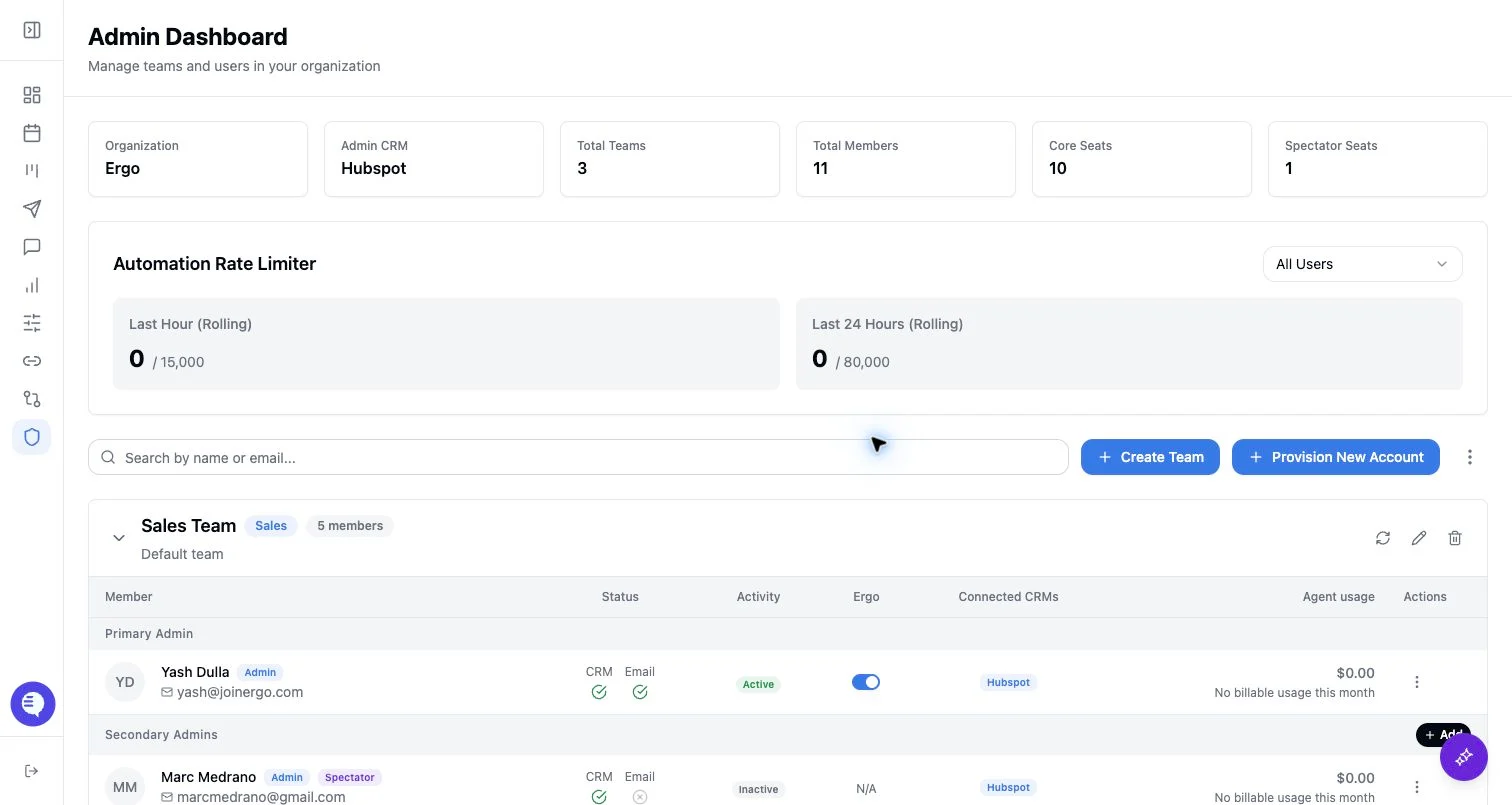
Symptoms
- A page is hidden or returns access denied.
- A shared link asks for authentication, password, or one-time access.
- A user cannot see meetings, reporting, drafts, field mapping, or admin controls.
- A spectator or standard user expects an admin-only workflow.
Most common causes
- Role, team, spectator, meeting access, or reporting access is insufficient.
- The user is in the wrong workspace or signed in with the wrong account.
- Feature flag, source connection, or workspace access is not enabled for that user.
- Shared link password, authentication, or one-time access is required.
- The source object is private, deleted, filtered, or not shared with that viewer.
What to check
- Confirm the user is in the correct workspace and signed in with the expected account.
- Confirm role, team membership, spectator status, and admin/Super Admin status.
- Check reporting access grants, dashboard sharing, meeting access, and global meeting access separately.
- Check whether the source object exists and is visible to the acting user.
- Use a shared meeting, chart, dashboard, clip, note, or document link when narrow access is enough.
Resolution steps
- Ask an admin to adjust the narrowest access that matches the task.
- Do not share broad credentials to work around an access issue.
- If the user needs reporting, grant reporting access; if they need a meeting, share or grant meeting access.
- If the user needs admin controls, confirm they are an admin and that the control is not Super Admin-only.
When to contact support
- Contact support when the correct role, workspace, access grant, and source object are confirmed but access is still denied.
- Include the workspace, affected user, requested page/object/link, current role, expected access, actual error, and approximate time window.
- Keep examples generalized and avoid sharing sensitive customer content in support requests.