Who can use this
- Admins and RevOps owners who can manage CRM fields.
- Operators helping with onboarding, as long as a CRM admin owns the final configuration.
Before you start
- Connect the workspace CRM first.
- Use a CRM account that can read records and create or update fields on the objects Ergo will use.
- Decide which fields should exist on deals or opportunities, contacts, and companies or accounts.
- Confirm whether a field already exists in the CRM before creating a new one with a similar name.
Steps
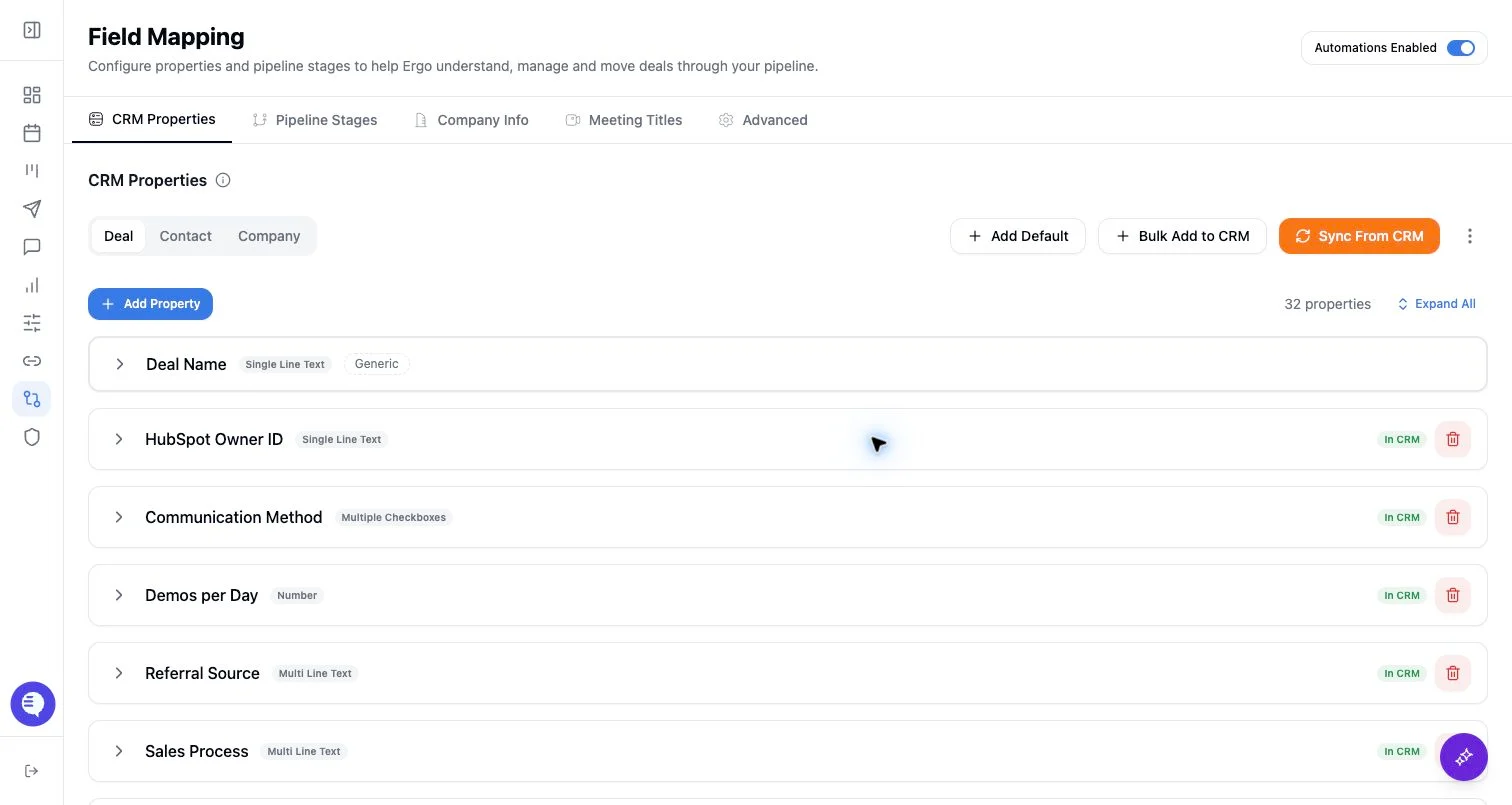
- Open Field Mapping from the left navigation.
- Review the CRM properties Ergo already knows about and the CRM-defined properties pulled from the connected CRM.
- Select the properties Ergo should sync or create. Keep names and field types aligned with your CRM’s conventions.
- Add descriptions or prompts where Ergo needs extra instruction about how a field should be populated.
- Create or sync the selected properties, then resolve any field drift before enabling broader automation.
- Test on one record or a small workflow before asking the team to rely on automated CRM updates.
What to expect
- CRM properties are handled separately from pipeline stages, but both are prerequisites for reliable CRM updates.
- Ergo compares configured properties with CRM properties for connected external CRMs and can surface drift when names, types, options, or select behavior diverge.
- Existing CRM permissions still apply. If the connected CRM user cannot create or update a property, Ergo cannot bypass that restriction.
- Adding or changing a property affects future automation. Treat any historical backfill expectations as a separate project unless your Ergo team has confirmed support for your workspace.
Common issues
- A CRM field exists but uses a different field type or option set than the Ergo configuration.
- The connected CRM user can read a field but cannot create or update it.
- A property was renamed or changed in the CRM after setup, creating drift.
- A downstream CRM update is tested before properties, permissions, pipeline stages, and stage controls are all ready.