Who can use this
- Standard users, AEs, CSMs, managers, operators, and admins completing their own personal setup.
- Admins helping users confirm the right account, reconnect state, or feature toggles.
- Spectator users should not expect email-analysis, follow-up-draft, or send settings to behave like a standard user setup path.
Before you start
- Choose one email provider for the user: Google Workspace or Microsoft 365. If one provider is already connected, disconnect it before connecting the other.
- Use the user’s primary work mailbox and calendar, not a personal inbox, alias-only account, or shared inbox unless that is intentionally the account Ergo should use.
- Confirm customer meetings are invited to the same calendar account that is connected in Ergo.
- Confirm your company allows the requested authorization. If an organization-managed provider blocks third-party app authorization, ask your internal admin or Ergo support before retrying repeatedly.
- Complete the approved notetaker setup after calendar access is connected.
Connect the account
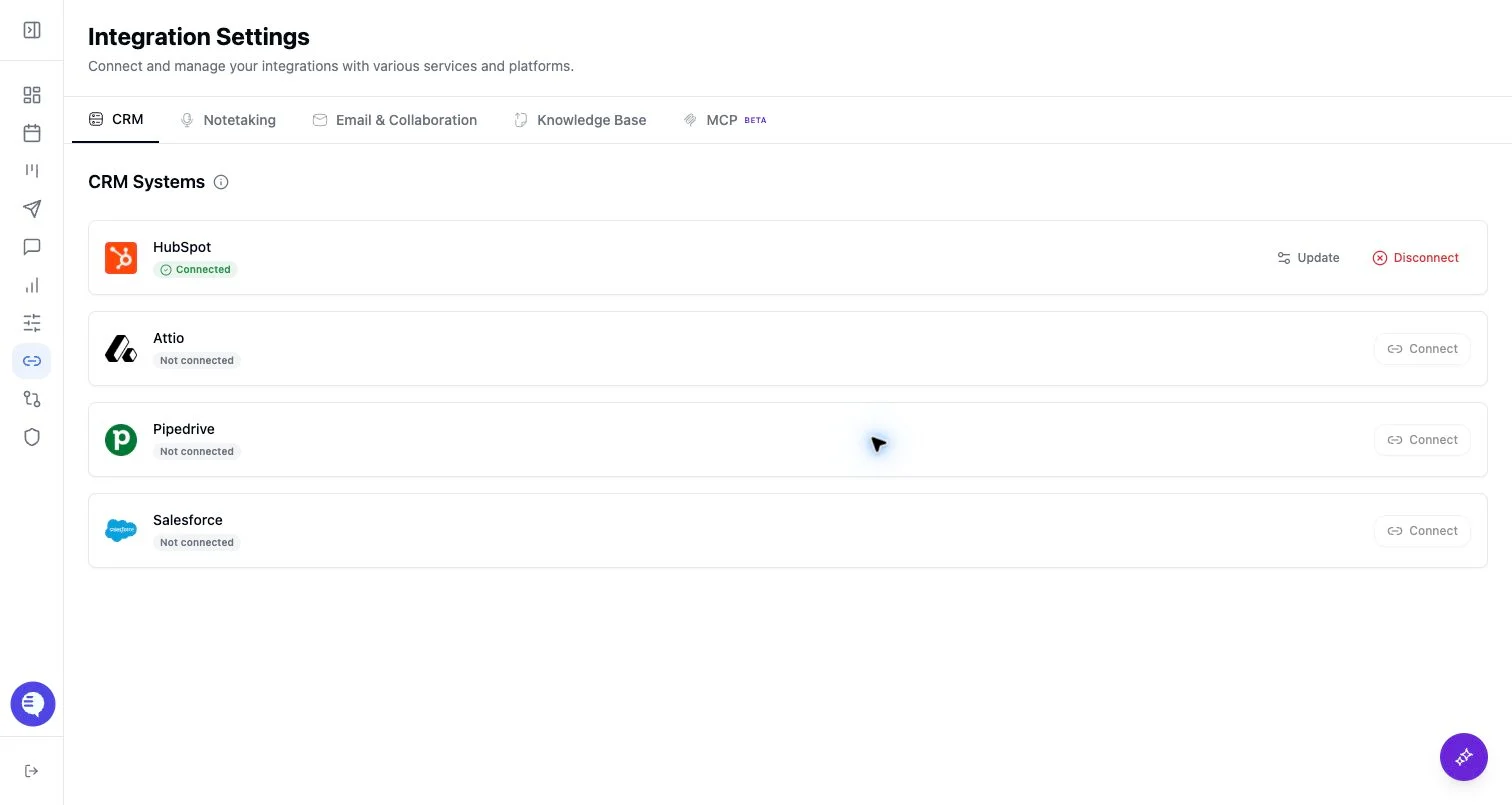
- Open Integrations.
- Go to the email or email-collaboration area.
- Choose Google Workspace or Microsoft 365.
- Follow the authorization flow and approve the requested email and calendar permissions.
- Return to Ergo and confirm the provider shows as connected.
- Check the connected provider’s feature toggles before testing a workflow.
Check email feature toggles
When the provider is connected, Ergo can show email-related settings for standard users.- Email Analysis controls whether Ergo analyzes relevant emails for downstream context and CRM-related workflows when enabled.
- Post-Call Followup Emails controls whether post-call follow-up drafts are generated when the meeting, template, recipient, and processing context qualify.
- Surfacing appears only when enabled for your workspace and can surface follow-up opportunities from recent deal context.
- External email client is a delivery setting for teams that review or send drafts from an external email workflow.
Test the calendar path
- Open Meetings or the dashboard upcoming-meetings area.
- Confirm the next customer meeting appears from the connected calendar.
- Open the meeting and check the current meeting link, owner, attendees, and notetaker status.
- If the meeting was rescheduled or the meeting link changed, recheck the specific occurrence before the call starts.
- For live or ad hoc calls, use Add Bot to Meeting with the actual Zoom, Google Meet, or Microsoft Teams room link, not a scheduling page URL.
- If the host controls admission, make sure the host admits the Ergo bot from the waiting room.
What to expect
- Email and calendar connection is separate from CRM connection, field mapping, notetaker setup, and draft settings.
- Calendar connection helps Ergo find and match meetings, but the notetaker still needs to join, be admitted, and finish processing before downstream outputs are available.
- Email connection enables draft sending and email context only when the connected mailbox, settings, permissions, and workflow support it.
- Expired or revoked Google/Microsoft grants can block the dashboard and show a reconnect prompt. Reconnect with the same intended work account.
- Changing a provider password, revoking app access, or changing provider/admin policies can require reconnecting in Ergo.
Common issues
- The wrong mailbox or calendar was connected.
- One provider is already connected, so the other provider cannot be connected until the first one is disconnected.
- A required email or calendar permission was not approved, or the provider admin blocked the authorization.
- The calendar appears connected, but the meeting invite lives on a different calendar or account.
- The meeting link changed, the meeting was rescheduled, or the host did not admit the bot.
- A scheduling page link was used instead of a live meeting-room link.
- Drafts are disabled, the meeting did not qualify, the email grant is stale, or sender/recipient/subject/body/thread validation failed.
Related articles
- Google Workspace
- Microsoft 365
- Calendar scopes and meeting auto-join
- Expired grants and reconnecting
- Email signature
- Notetaker setup
- Dashboard/upcoming meetings
- Schedule or cancel the notetaker
- Add the bot to a live or ad hoc meeting
- Turn post-call drafts on or off
- Draft send failures
- Google/Microsoft/Slack reconnects