Who can use this
- AEs and account owners using Ergo for customer meetings, follow-up drafts, and deal context.
- Managers, RevOps owners, and operators helping sellers troubleshoot missing meetings, drafts, or CRM context.
- Admins confirming that AE-facing workflows are ready before broader rollout.
Before you start
- Complete AE setup: Sync with Admin when prompted, connect email/calendar, configure draft settings, and connect the approved notetaker source.
- Confirm your team has configured templates, CRM fields, pipeline stages, and reporting access when those workflows are part of the rollout.
- Know whether your workspace uses Slack or another collaboration source for pre-call context or notifications.
- Review drafts before sending unless your workspace has explicitly approved an auto-send workflow.
Tips
- Use meetings as the engine. Confirm important calls are captured, processed, and matched to the right account or deal before relying on drafts or CRM updates.
- Admit the bot when it appears. If the bot is missing from a live or ad hoc call, use the manual Add Bot workflow and confirm the host admits it.
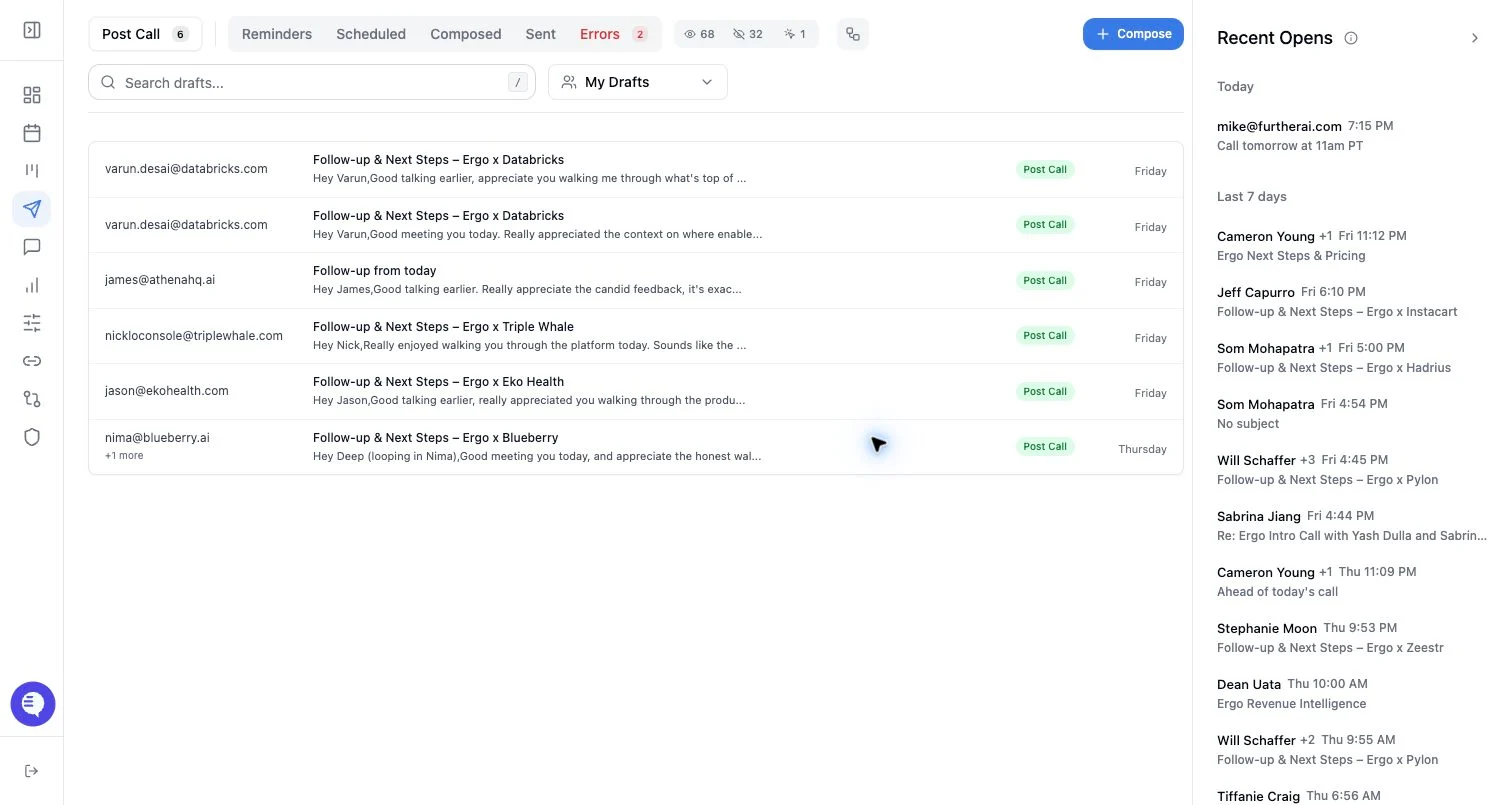
- Work post-call drafts in batches. Open Drafts or your connected mailbox, review recipients, facts, commitments, owners, links, dates, and tone, then send or dismiss.
- Check draft eligibility before assuming a bug. Drafts depend on email/calendar connection, draft settings, meeting capture, processing state, meeting relevance, templates, recipient context, and source permissions.
- Use templates to avoid starting from scratch. Templates help Ergo match your team’s preferred follow-up structure; update them when your sales motion or follow-up style changes.
- Use Deals as your daily pipeline check when enabled. Review board/list views, health, priority, recent activity, open next steps, and AI overviews to find what is moving or stalling.
- Ask Ergo specific questions. Name the customer, deal, last meeting, date range, or desired output. For example, ask for call prep, a follow-up draft, agreed next steps, risk summary, or deals that need attention.
- Watch Slack or collaboration updates only when your team has connected them. Pre-call briefs and notifications depend on the connected workspace, channels, and user access.
- Correct bad context early. If a draft, deal match, CRM field, or summary looks wrong, fix the source record or ask an admin/support for help before the same issue repeats.
What to expect
- Meeting outputs can finish separately. A recording, transcript, summary, insights, drafts, and reporting fields may not appear at the same time.
- Drafts are usually reviewable before send; auto-send should be treated as a team-approved workflow, not the default expectation.
- Deals, Chat with Ergo, reporting, and some AI/search surfaces can be controlled by feature availability, permissions, filters, saved views, and source freshness.
- Running multiple notetaker sources through Ergo can create duplicate meeting context or duplicate drafts. Pick the source that should drive Ergo workflows.
Common issues
- The AE expects drafts before the meeting has processed or before the meeting qualifies for draft generation.
- The AE assumes Ergo will auto-send follow-up emails instead of treating drafts as reviewable suggestions.
- The bot was not admitted, the meeting moved, the meeting link changed, or the event was not on the connected calendar.
- Deal or company context is wrong because CRM records, domains, meeting titles, field mapping, or filters are unclear.
- Slack pre-call briefs or CRM-update notifications are expected before Slack is connected or the bot has the right channel access.
- Reporting or deal views are hidden because access, feature availability, filters, or saved views do not include the expected records.
Related articles
- AE setup
- Add the bot to a live or ad hoc meeting
- Why some meetings do not generate insights or drafts
- Using multiple notetakers with Ergo
- Draft email logic: when drafts are created and how to dismiss
- Review/edit AI drafts
- Email templates setup
- Deals board overview
- How Ergo names and matches CRM records
- Chat with Ergo