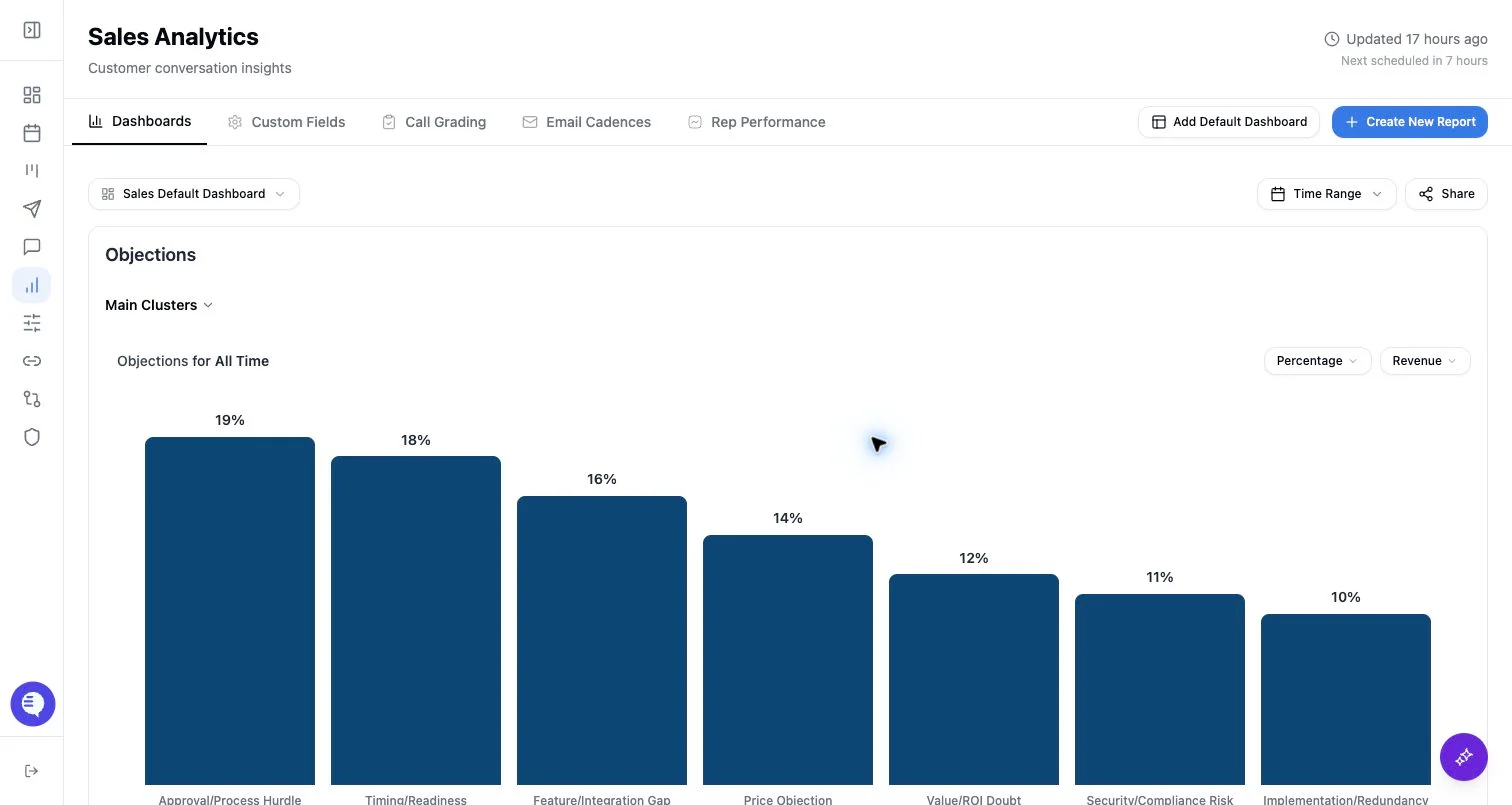
Open run history
- Open Reporting.
- Select Email Cadences.
- Choose the cadence.
- Open the run history or a recent run.
Run statuses
Runs can be:- Queued
- Running
- Succeeded
- Failed
- Skipped
Triggers and modes
- Scheduled: created by the cadence schedule.
- Manual test: queued from a test run.
- Manual send: queued from send now.
- Preview mode: renders the report without normal scheduled delivery.
- Send mode: prepares and sends to recipients when the run succeeds.
Failure stages
Failure details may identify a stage such as preflight, queue, agent analysis, chart data, chart render, email render, email send, or persistence. Use the stage to decide whether to adjust the cadence, check source data, retry later, or contact support.Diagnose missing output
- Confirm the cadence is enabled if you expected a scheduled run.
- Check whether the latest run is still queued or running.
- Review selected fields or auto-selected chart fields.
- Check recipient count and email result.
- If analysis failed, simplify instructions or verify the selected fields have enough recent data.
- If chart rendering or email sending failed, retry after checking for known platform issues.