Who can use this
- Users with Reporting access can view default dashboards if the dashboard is visible to them.
- Users with create access can add a default dashboard.
Create a default dashboard
- Open Reporting.
- Stay on the Dashboards tab.
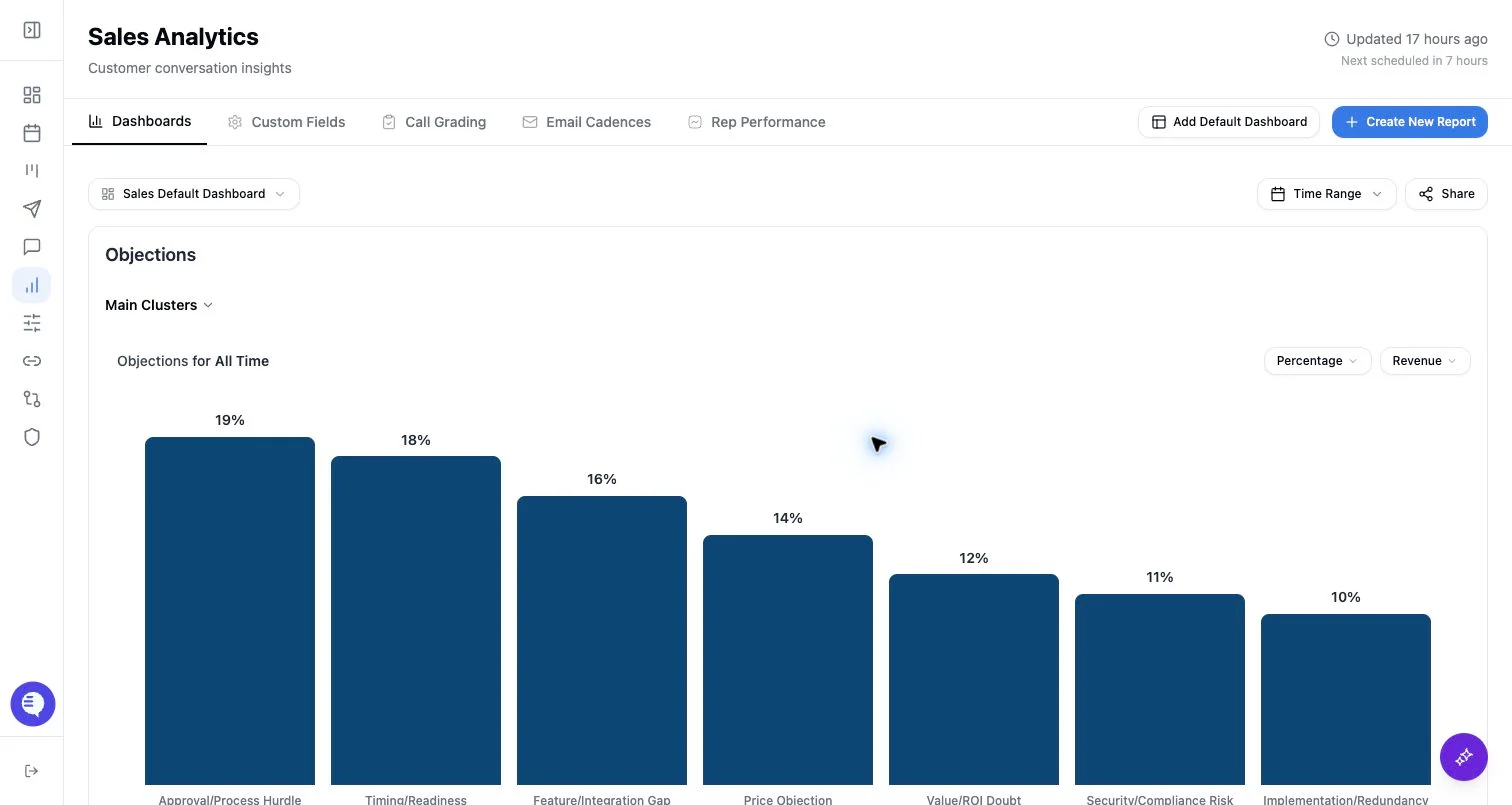
- Select Add Default Dashboard.
- Choose the dashboard type, such as Sales, Customer Success, or Product.
- Choose a team if the modal asks for team scope.
- Review the generated dashboard before sharing it.
Customize after creation
- Rename the dashboard if the default name is too broad.
- Edit or remove widgets that do not match your operating rhythm.
- Add charts from Chart Builder for metrics you review regularly.
- Reorder dashboards so the most common review path appears first.
- Share the dashboard only after confirming the fields and time ranges are appropriate for the audience.
What to expect
- Creating a default dashboard may add required default reporting fields if they are missing.
- Default dashboard content depends on the selected type and team scope.
- A default dashboard is a starting point; charts still need relevant data before they become useful.
- If reporting data is still clustering, charts may change after processing completes.