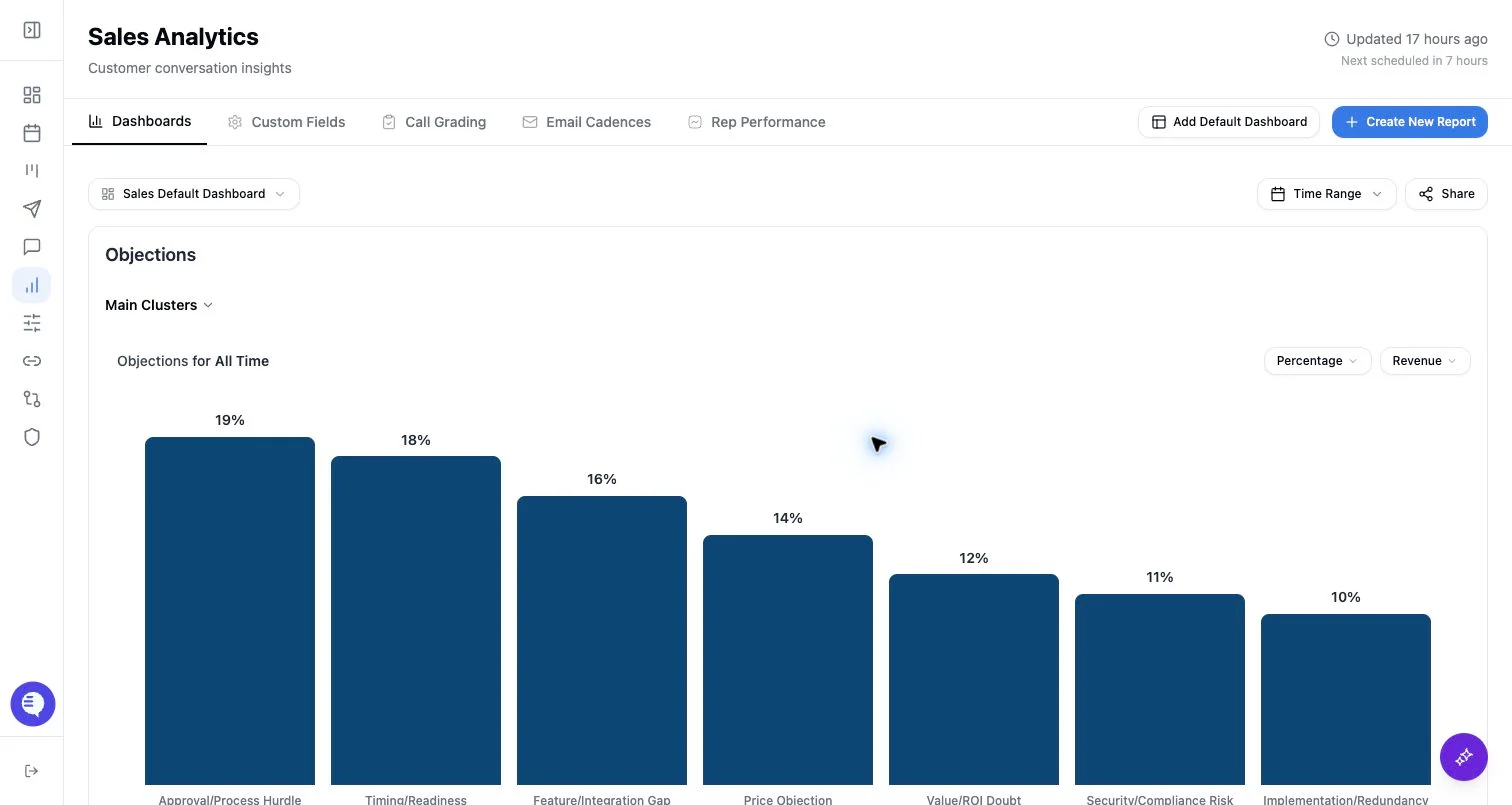
Who can use this
- Users with Reporting create access can create and edit reports.
- Users with view-only Reporting access can review dashboards they have access to, but may not see creation controls.
Create a report
- Open Reporting.
- Select Create New Report.
- Rename the report title if needed.
- Choose a main category.
- Optionally choose a breakdown category, filters, time range, chart type, or supported advanced view.
- Review the preview.
- Select Save Report.
- Choose the dashboard where the report should appear.
Edit an existing report
- Open the dashboard that contains the chart widget.
- Open the widget menu.
- Select the edit action.
- Update the category, breakdown, filters, chart type, time range, revenue preset, or rubric field as needed.
- Select Update Report.
What to expect
- A main category is required before a report can be saved.
- Saved chart types are bar or pie.
- Editing a report updates the widget configuration on the selected dashboard.
- Some category combinations are blocked: rubric and deal/company-level fields do not support the same breakdown behavior as correspondence-level fields.
- If a dashboard is missing from the save modal, check Reporting access and dashboard permissions.