Who can use this
- Admins managing the org-level Pylon connection.
- Operators validating support or customer-success handoff workflows.
Before you start
- Confirm you are an admin in Ergo.
- Have the Pylon token your team intends Ergo to use.
- Decide which meeting workflows should send recordings to Pylon.
Steps
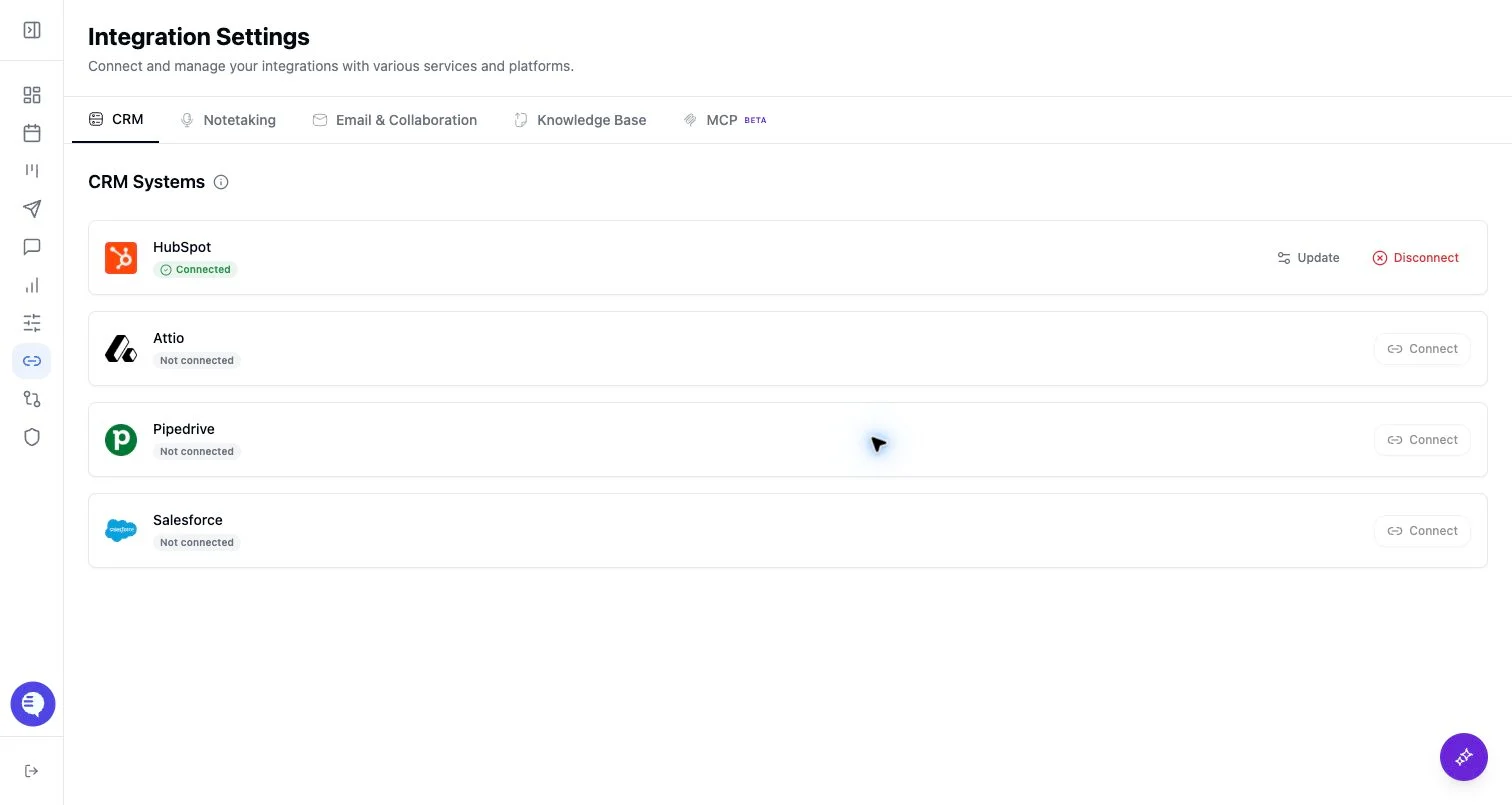
- Open Integrations and select Pylon.
- Paste the Pylon token.
- Confirm the org-level Pylon status shows connected.
- Test with a known supported meeting before relying on automatic delivery.
What to expect
- Pylon is managed as an org-level integration and is visible to admins.
- The integration is for sending meeting recordings to Pylon; it is not a general-purpose Pylon support-ticket sync.
- Delivery depends on meeting processing, recording availability, and the configured Pylon token.
Common issues
- A non-admin user cannot connect or disconnect Pylon.
- The token is invalid or was rotated in Pylon.
- The meeting has not processed or does not have a recording available for delivery.