Who can use this
- Users connecting their own Outlook mailbox and calendar.
- Admins and operators helping users troubleshoot email, calendar, or draft workflows.
Before you start
- Sign in with the Microsoft account you use for customer email and calendar events.
- If your Microsoft tenant requires admin consent or app allowlisting, ask your Microsoft admin to approve Ergo before users connect.
- Each user should connect their own Microsoft account; an admin connection does not bind another user’s mailbox or calendar.
- Approve the requested Outlook and Calendar scopes.
- Do not connect both Microsoft 365 and Google Workspace for the same user unless your team has validated the intended provider.
Steps
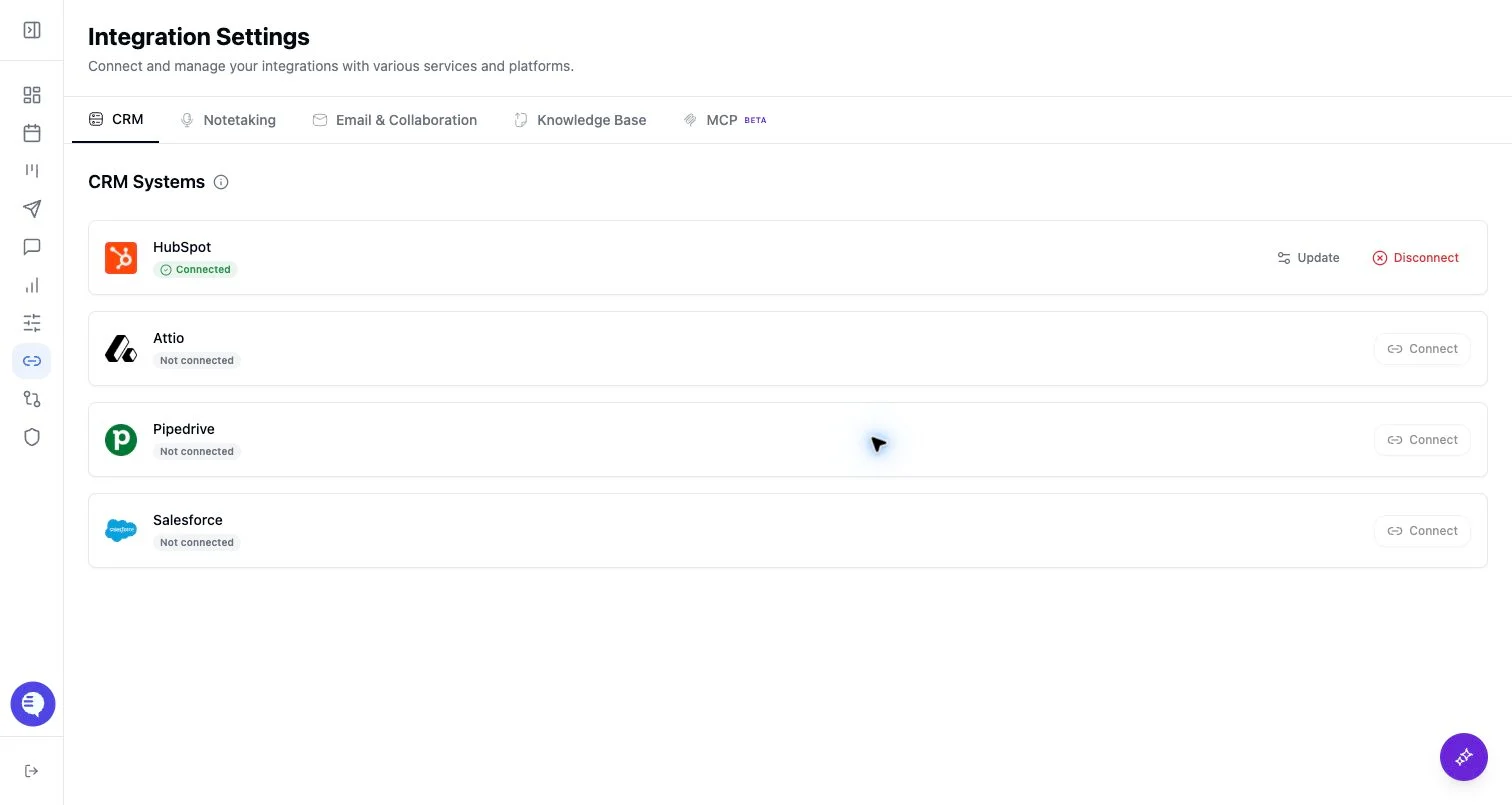
- Open Integrations and select Microsoft 365.
- Complete OAuth with the correct Microsoft account.
- Confirm Microsoft 365 appears connected.
- Test the email/calendar workflow your team plans to use.
What to expect
- Microsoft 365 can power Outlook and Calendar context for supported email, draft, meeting, and upcoming-calendar workflows.
- Calendar visibility depends on the connected account and its calendar permissions.
- If the grant expires or required scopes are revoked, affected workflows may pause until reconnect.
Common issues
- The wrong Microsoft account was connected.
- A Microsoft tenant policy blocks the OAuth flow until an admin approves the app.
- A required scope was not approved or was later revoked.
- Calendar events are on a calendar the connected account cannot access.