Who can use this
- Admins and operators enabling messaging context for a workspace.
- Users asked to provide a Beeper token for supported workflows.
Before you start
- Confirm the Beeper integration is enabled for your workspace.
- Use the token source your admin provided.
- Treat Beeper as a configured messaging source, not as a replacement for Slack or email/calendar connections.
Steps
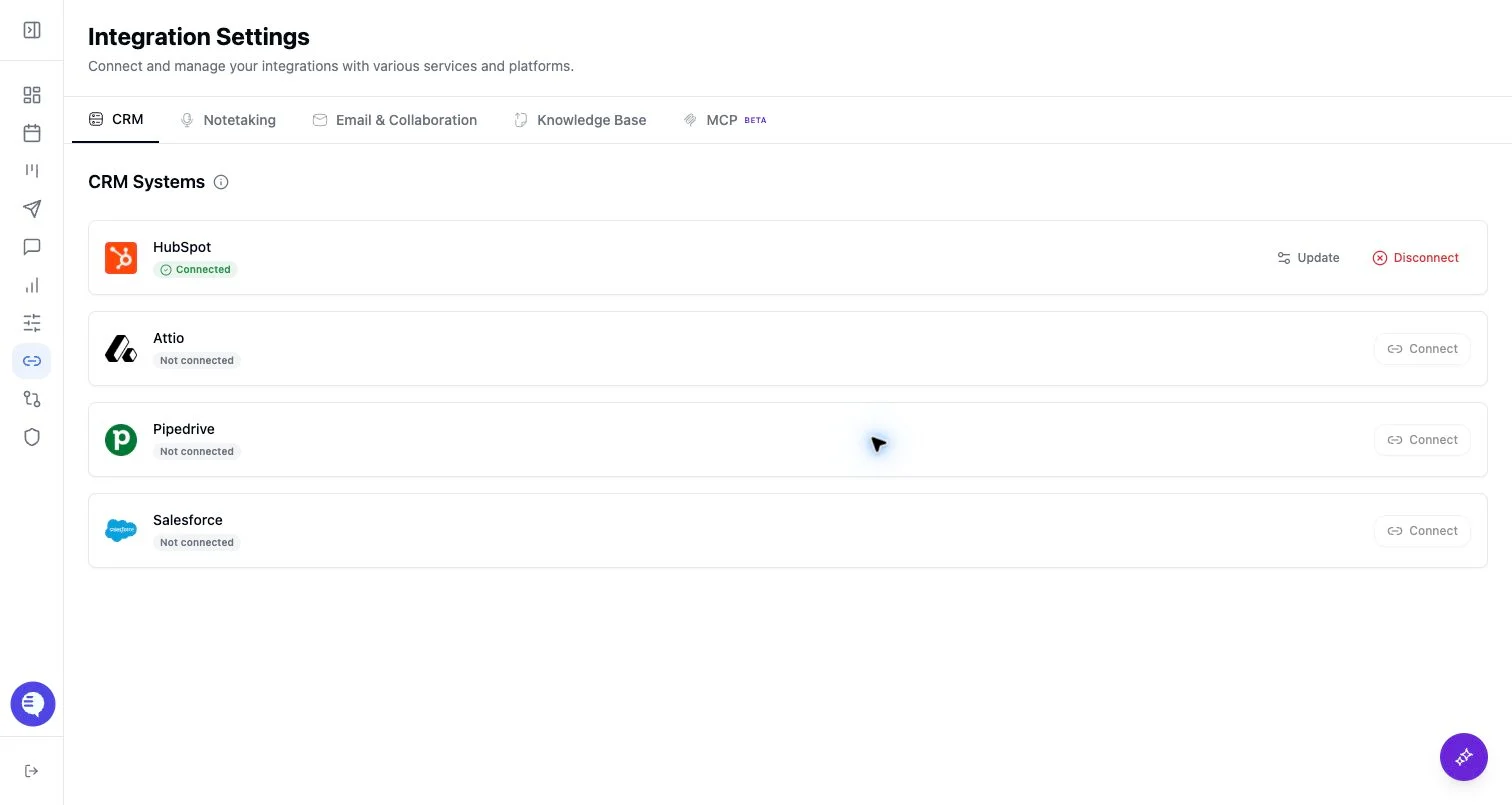
- Open Integrations and select Beeper.
- Paste the Beeper token.
- Confirm the card shows connected.
- Test the workflow your team expects Beeper to power.
What to expect
- Beeper is token-based and feature-gated.
- Downstream behavior depends on the workflow enabled for your team and the token’s access.
Common issues
- The integration is not enabled for the workspace.
- The token is expired, copied incorrectly, or lacks the expected access.
- The team expected Slack or email behavior from a Beeper-only connection.