Who can use this
- RevOps, sales operations, CRM owners, and admins with CRM permissions.
Before you start
- Use a CRM account that can read and update the fields Ergo needs.
- Map properties, pipelines, and stages before enabling broad CRM automation.
- Test changes on one record before rolling them out.
Steps
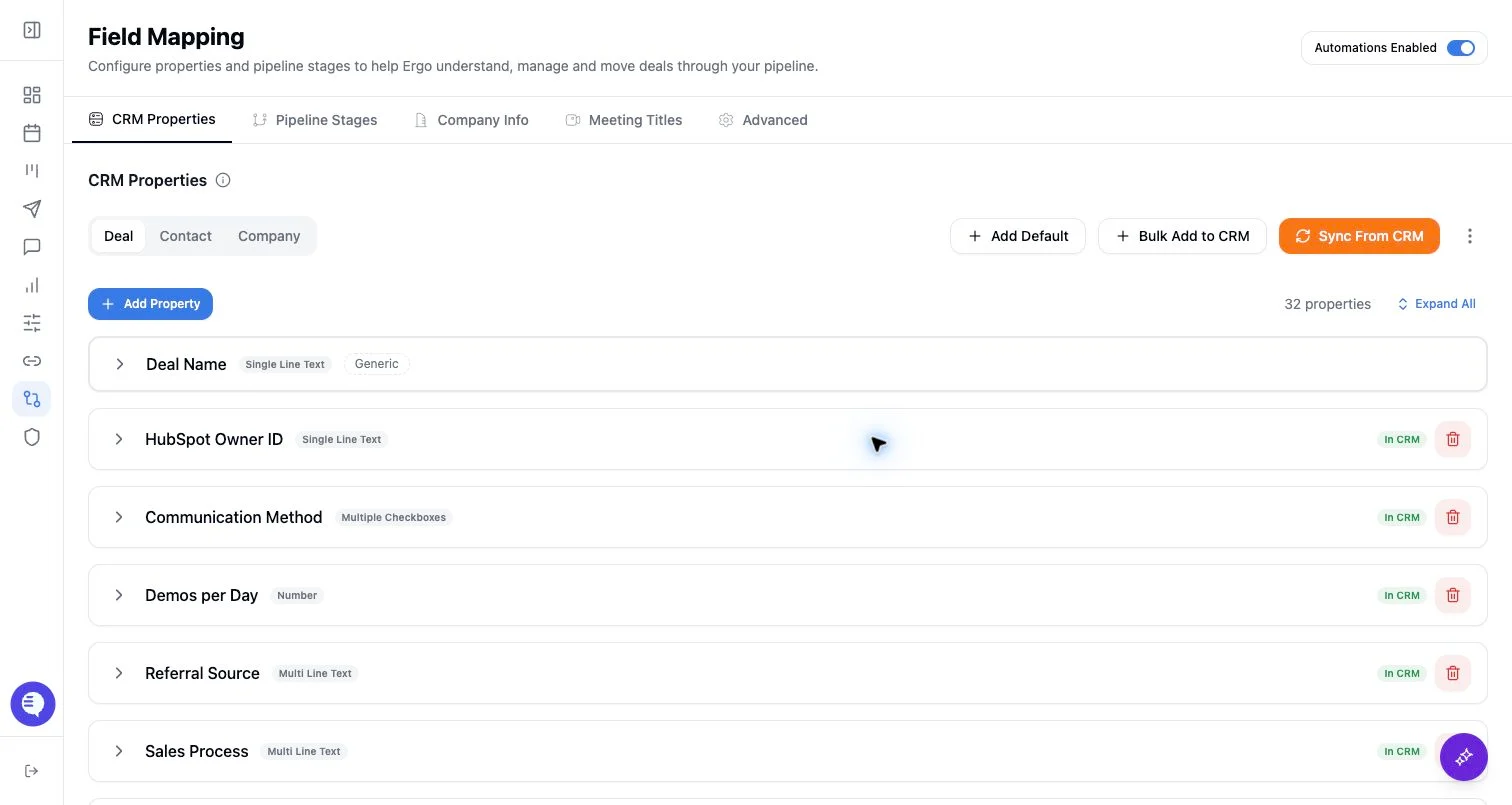
- Review deal, contact, and company property sections separately.
- Select existing CRM-defined properties to sync into Ergo.
- Add or create properties only when your CRM owner approves the field name, type, and options.
- Check field type, picklist options, multi-select behavior, descriptions, and source.
- Keep field descriptions specific enough for AI-assisted classification.
What to expect
- Mapped properties can be shown on boards, cards, lists, detail pages, and AI context surfaces.
- CRM-defined fields and Ergo-defined fields should not be treated interchangeably without checking the source.
- Field options must stay aligned with the CRM.
Common issues
- A CRM admin changed a field type or picklist option after sync.
- A property is mapped for the wrong object type.
- A field is visible in Ergo but not writable by the CRM integration user.