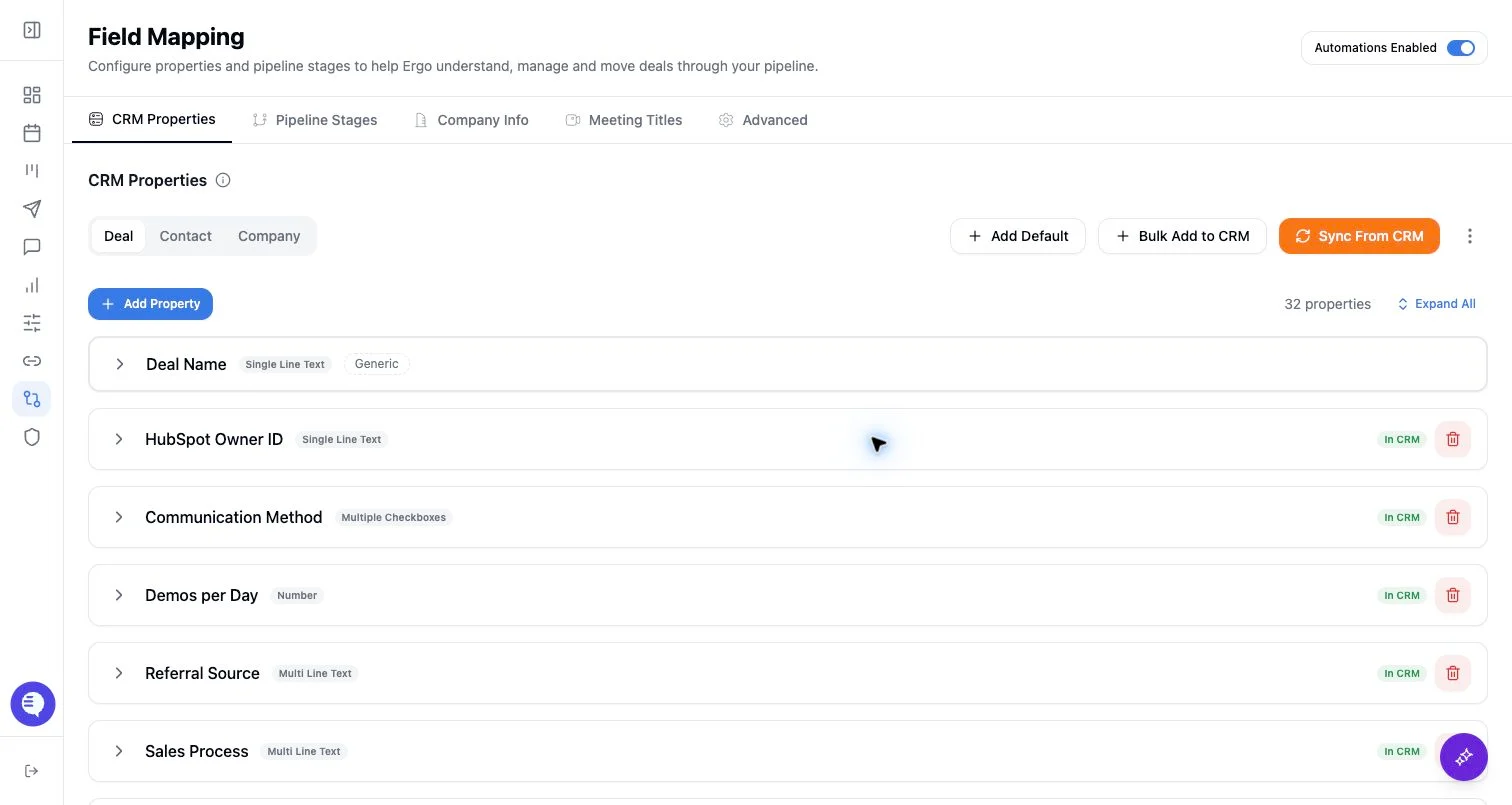
Who can use this
- RevOps, sales operations, CRM owners, and admins with CRM permissions.
Before you start
- Use a CRM account that can read and update the fields Ergo needs.
- Map properties, pipelines, and stages before enabling broad CRM automation.
- Test changes on one record before rolling them out.
Steps
- Open the CRM property sync modal from Field Mapping.
- Choose the object type: deal, contact, or company.
- Search and select existing CRM properties to sync.
- Leave auto-generated descriptions on only when the generated description is reviewed before use.
- Create new CRM properties only when the CRM owner has approved the field type, options, and naming.
- Refresh or resync when one field changed in CRM.
What to expect
- Synced properties become available to Field Mapping and other Ergo surfaces after refresh.
- Creating CRM properties depends on CRM support and integration permissions.
- Existing properties are preselected in the sync modal so admins can see what is already mapped.
Common issues
- A property exists in CRM but was not selected during sync.
- Auto-generated descriptions are too generic for reliable AI context.
- The CRM blocks property creation for the integration user.