Who can use this
- Managers reviewing team draft coverage.
- Admins configuring draft visibility.
- Reps who need to understand what managers can see.
Before you start
- Confirm org-wide draft access is enabled for your workspace.
- Confirm the viewer has the right role or permission.
- Decide whether you need to view one user’s drafts or all available drafts.
Steps
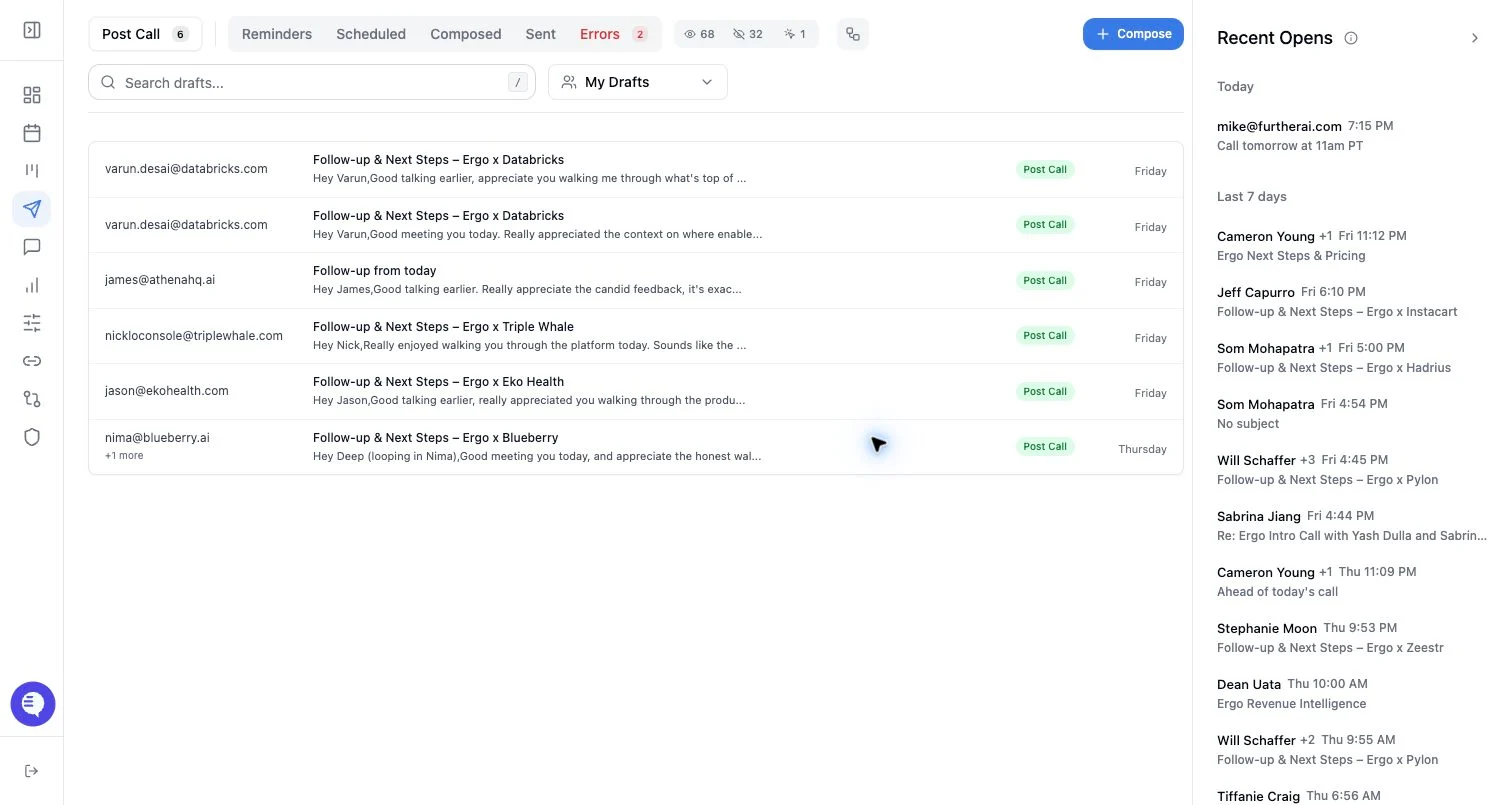
- Open Drafts.
- If the user selector appears, choose your own user, a teammate, or All.
- Use queue tabs and search within the selected scope.
- Open drafts only when you have a legitimate review or coaching reason.
- Switch back to your own user when sending from your own account.
What to expect
- The user selector is shown only when org-wide draft access is enabled.
- URL state can preserve the selected user filter.
- Draft ownership still matters. A draft generated for one user should not be treated as a shared team inbox item.
- Template sharing and draft visibility are separate concepts.
Common issues
- A manager is looking at their own drafts instead of a teammate’s drafts.
- A user expects a shared draft inbox when the workspace only shares templates.
- A draft cannot be sent because the selected sender or owner account is disconnected.
- Access is missing because the viewer does not have the required role or feature flag.