Who can use this
- Users sending or scheduling email through Ergo.
- Admins troubleshooting failed sends or scheduled drafts.
Before you start
- Review the draft body and recipients.
- Confirm the selected sender account is connected.
- Confirm the draft should be sent now or scheduled for a future time.
Steps
- Open the draft.
- To send now, choose Send and confirm any undo prompt or validation state.
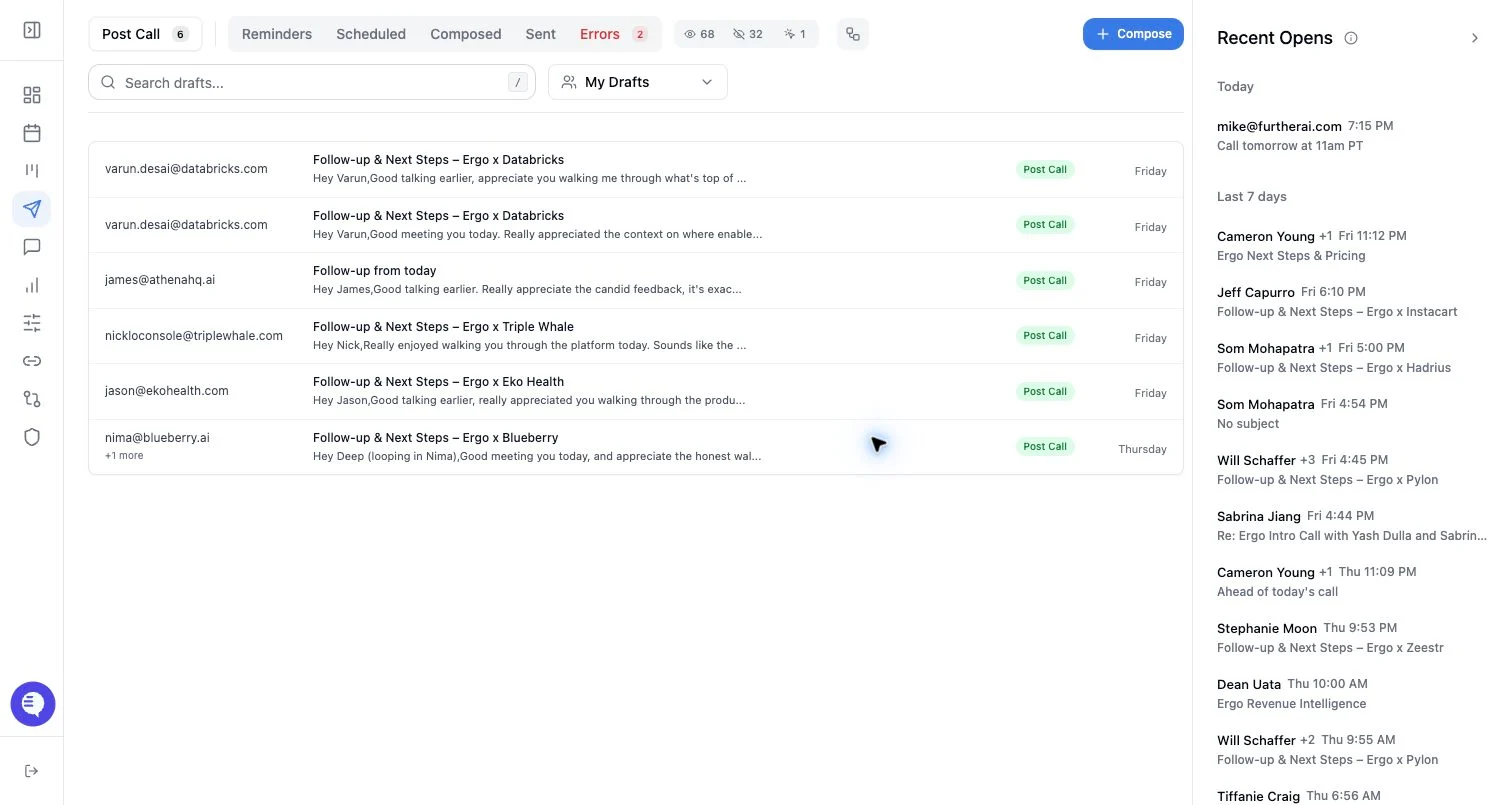
- To schedule, choose the schedule option and select the send time.
- To cancel a scheduled draft, open the Scheduled queue and choose the unschedule action.
- If Ergo shows an undo option after a supported action, use it before the undo window expires.
What to expect
- Send uses the connected email provider for the selected sender.
- Scheduled drafts move to the Scheduled queue until they are sent or unscheduled.
- Unscheduling returns the draft to an editable state when provider cancellation succeeds.
- Undo support depends on the action and whether the undo window is still open.
- Open tracking and sent-state updates may not appear immediately after scheduling or sending.
Common issues
- Email access is expired.
- Recipients, subject, body, sender, or thread metadata are missing or invalid.
- The scheduled send time is invalid or already passed.
- The provider accepted the schedule but has not yet returned final sent-state or tracking data.