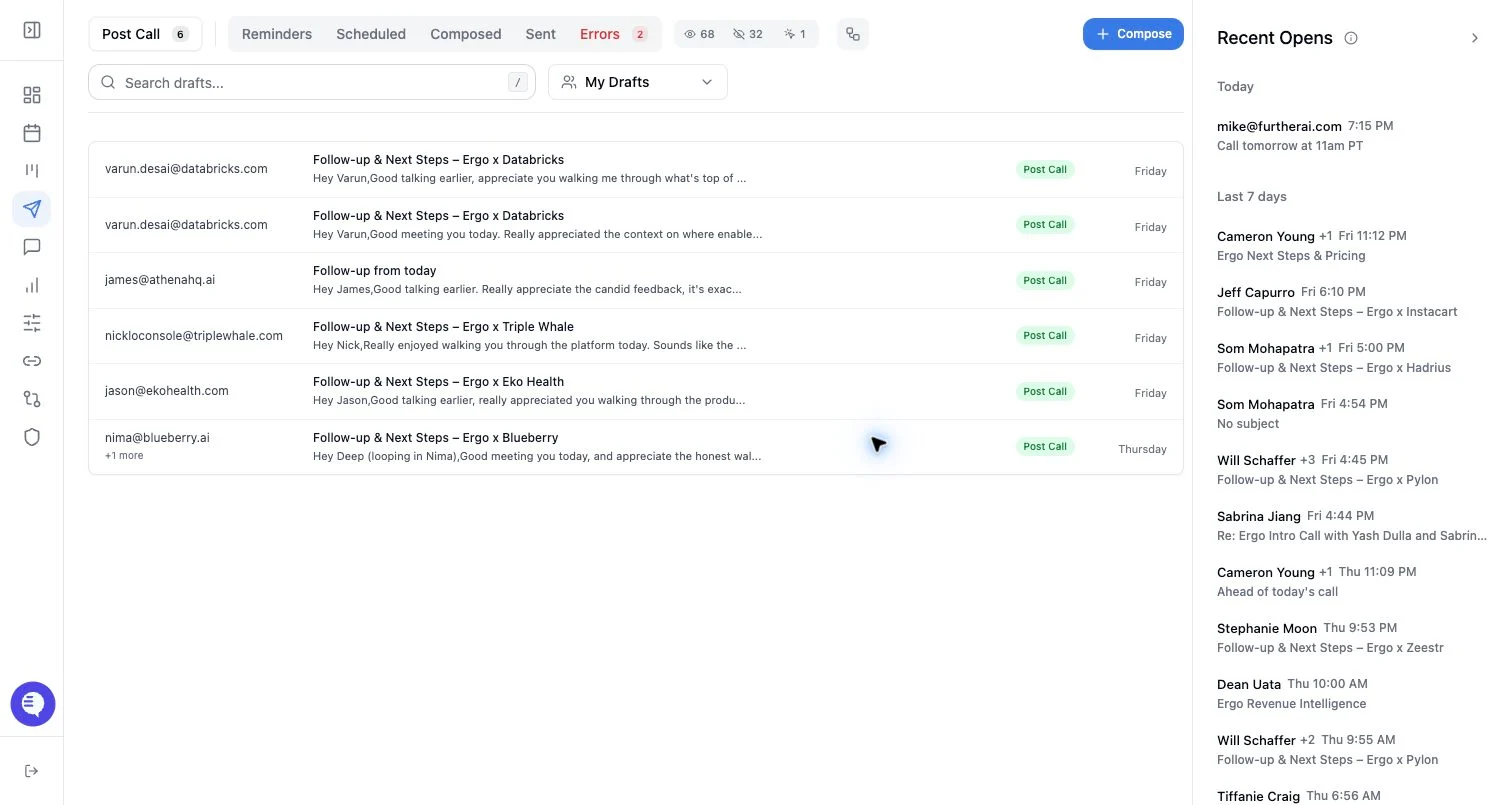
Who can use this
- Reps and account owners sending email from Ergo.
- Managers coaching users on draft quality and review habits.
Before you start
- Open the draft from the correct queue.
- Review the associated meeting, deal, or thread context.
- Confirm whether the draft should reply in an existing thread or start a new one.
Steps
- Check the From, To, Cc, and Bcc fields.
- Check the subject and thread strategy.
- Edit the body directly in the editor.
- Add, remove, or confirm attachments and inline images.
- Confirm the signature and any footer content.
- Send, schedule, set a reminder, or dismiss the draft.
What to expect
- Body edits save separately from metadata updates such as subject, recipients, and thread choice.
- AI copy may miss nuance, overstate a next step, or choose the wrong tone. Edit before sending.
- Some drafts include related thread context so you can avoid duplicating an existing conversation.
- Provider validation can block send or schedule if required fields or thread data are invalid.
Common issues
- The draft references a stale meeting or deal state.
- The AI selected an old thread or no thread when a reply is needed.
- Attachment or inline image limits are exceeded.
- The signature is missing because the user’s signature settings are not configured.