Who can use this
- Sales reps and account owners reviewing their own drafts.
- Managers or admins with org-wide draft access, when enabled for the workspace.
Before you start
- Connect the sender’s email account.
- Confirm the user has draft generation enabled for the relevant source, such as post-call follow-ups or proactive surfacing.
- If using org-wide draft viewing, select the correct user or All before assuming a draft is missing.
Steps
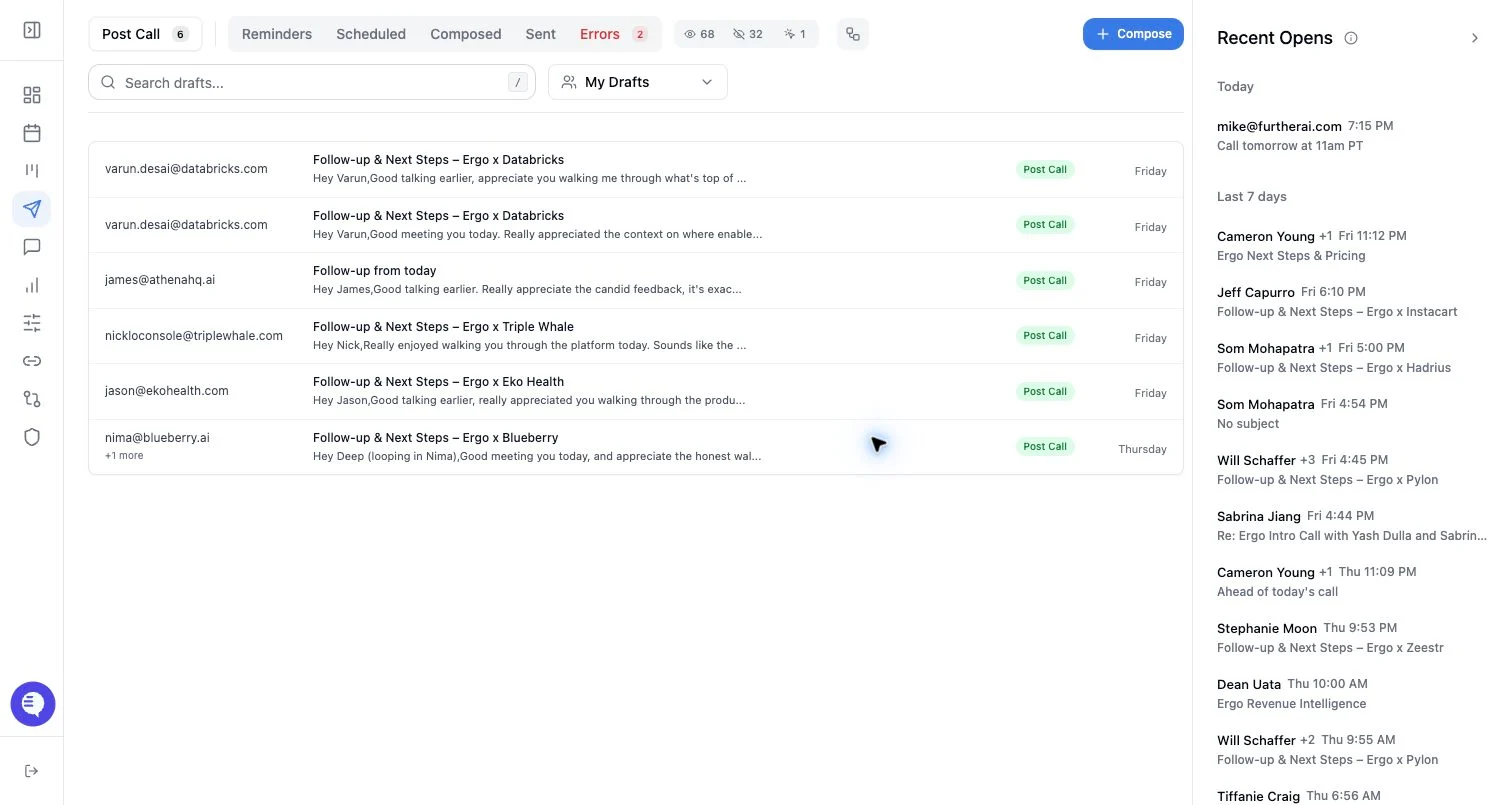
- Open Drafts.
- Choose the relevant queue. Common queues include post-call, surfacing, reminders, scheduled, composed, sent, and failed drafts.
- Use search to narrow the visible list by draft content or recipient context.
- If org-wide draft access is enabled, use the user selector to view your drafts, another user’s drafts, or all available drafts.
- Select a draft to open the editor.
- Review the recipients, sender, subject, body, thread choice, attachments, and signature.
What to expect
- Selecting a draft only opens it; it does not send the email.
- Draft list state is reflected in the URL, so links can open a specific queue or draft.
- Some draft sources may also create provider-side drafts in the connected email account, but customer docs should not assume every Ergo draft is always mirrored in every email client.
- Sent and scheduled drafts move out of the main pending review flow.
Common issues
- Draft generation is disabled or the meeting did not qualify.
- Email grant is stale.
- The wrong user filter is selected in an org-wide draft view.
- Recipient, subject, body, sender, or thread strategy fails validation.