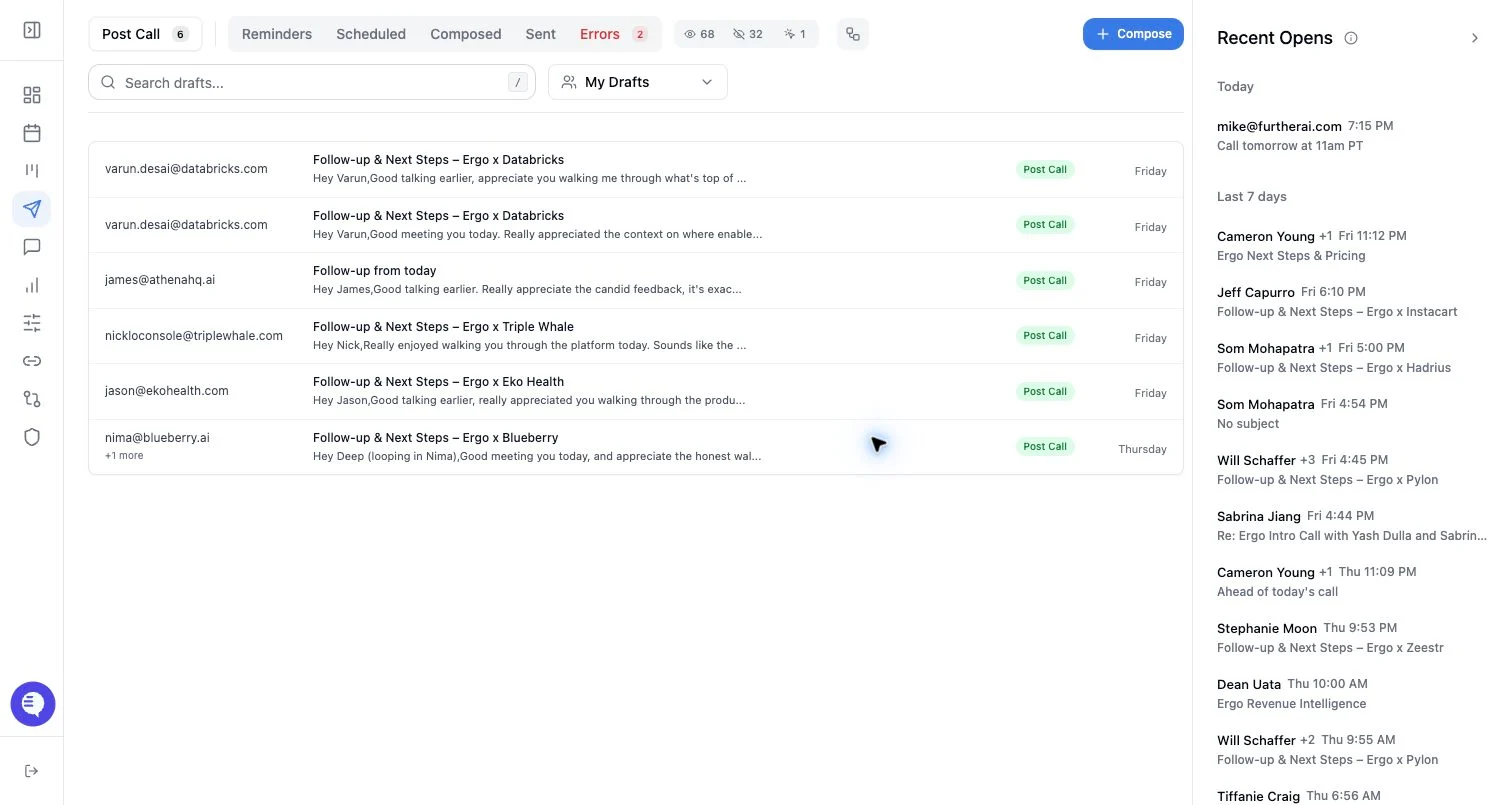
Who can use this
- Reps processing draft queues.
- Managers and admins defining how reps should handle bad-fit follow-ups.
Before you start
- Confirm whether the issue is the draft copy, the draft timing, or the underlying deal status.
- Use reprompt or edit when the email is still worth sending.
- Use dismiss when the draft should not be sent.
- Use disqualify only when the associated deal should follow your closed-lost process.
Steps
- Open the draft.
- Choose dismiss/discard to remove only the draft from the queue.
- Use undo if it appears and the dismissal was accidental.
- Choose disqualify only after confirming the linked deal and your team’s CRM policy.
- Review the deal afterward if disqualification updates CRM or pipeline state in your workspace.
What to expect
- Dismissing a draft does not send an email.
- Dismissed drafts may be recoverable only through an undo window or support process, depending on timing.
- Disqualification is not a copy-editing tool. It should reflect deal status.
- Keyboard shortcuts and Go Mode behavior can vary by enabled workflow, so confirm the visible action before using shortcuts quickly.
Common issues
- A user dismisses a draft that only needed editing.
- A draft is disqualified when the deal should stay open.
- A dismissed draft reappears because a new workflow creates a fresh draft from newer context.
- The draft belongs to a different deal or user than expected.