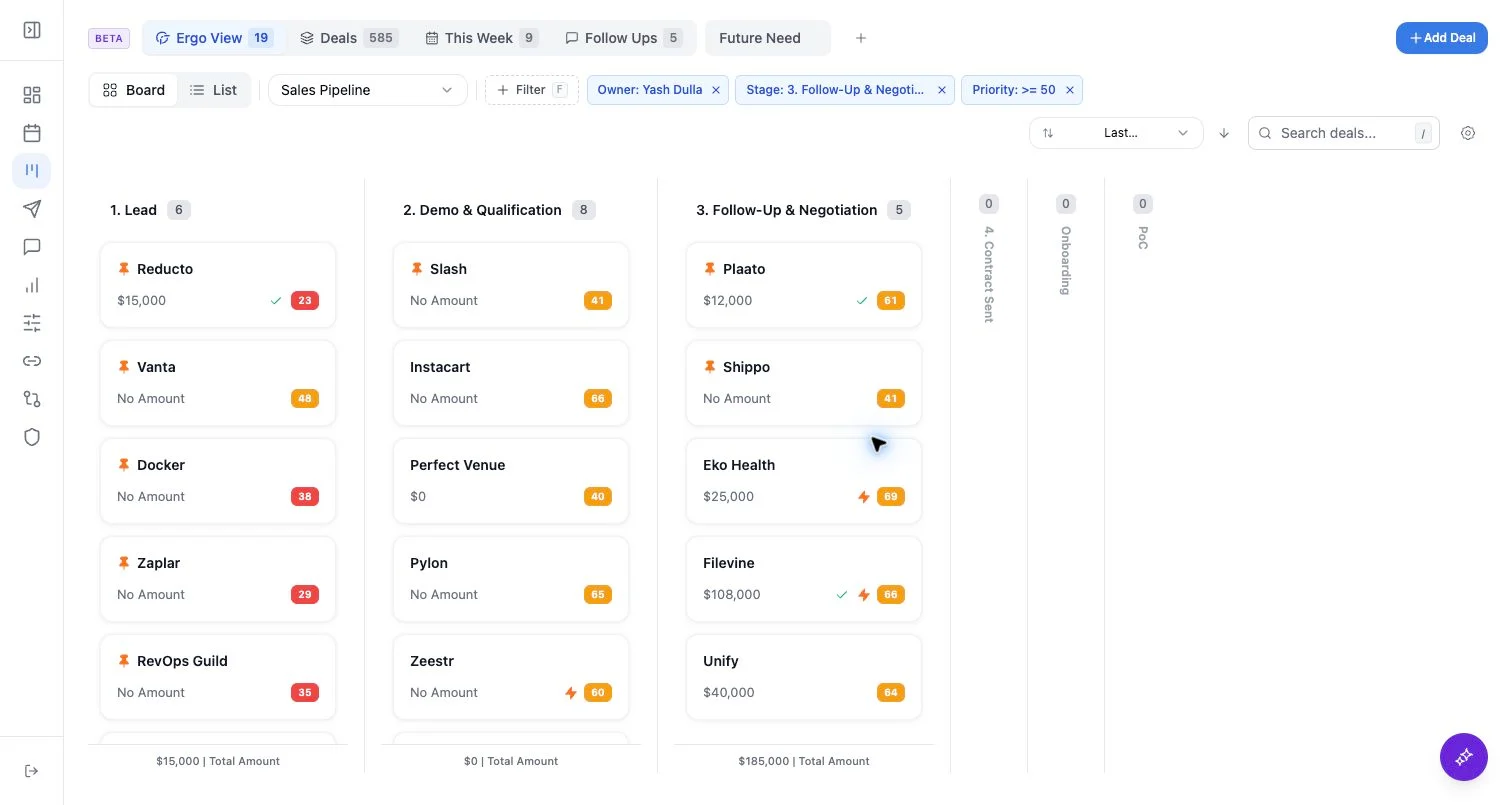
Who can use this
- Sales reps, account owners, managers, RevOps, and admins working from pipeline and account context.
Before you start
- Connect CRM and complete field mapping before relying on CRM writeback.
- Check pipeline, view, filter, ownership, and record matching before assuming a record is missing.
- Confirm Deals access is enabled for your workspace; contact your admin or Ergo support if you do not see it.
Steps
- Search by deal or company context when you know the name.
- Filter by supported standard fields such as stage, owner, team, amount, dates, activity, status, and priority.
- Filter by mapped custom fields when those fields are available in the board bootstrap.
- Sort list view by supported list columns.
- Clear search and temporary filters, or switch to a less-scoped view such as Deals, when troubleshooting.
What to expect
- Search is applied within the selected pipeline or view.
- Some built-in views add preset filters, such as follow-up or reminder-oriented rows.
- Custom-field filters depend on fields synced through Field Mapping.
Common issues
- Search text is still active.
- A built-in or custom view is applying saved filters.
- The filter uses a display name when the underlying record is keyed by ID.