Who can use this
- RevOps and managers automating recurring checks.
- Users who need periodic summaries or follow-up prompts.
Before you start
- Confirm scheduled agent runs are enabled for your workspace.
- Write a prompt that can run without extra clarification.
- Choose the timezone, days of week, time of day, and delivery destinations.
Steps
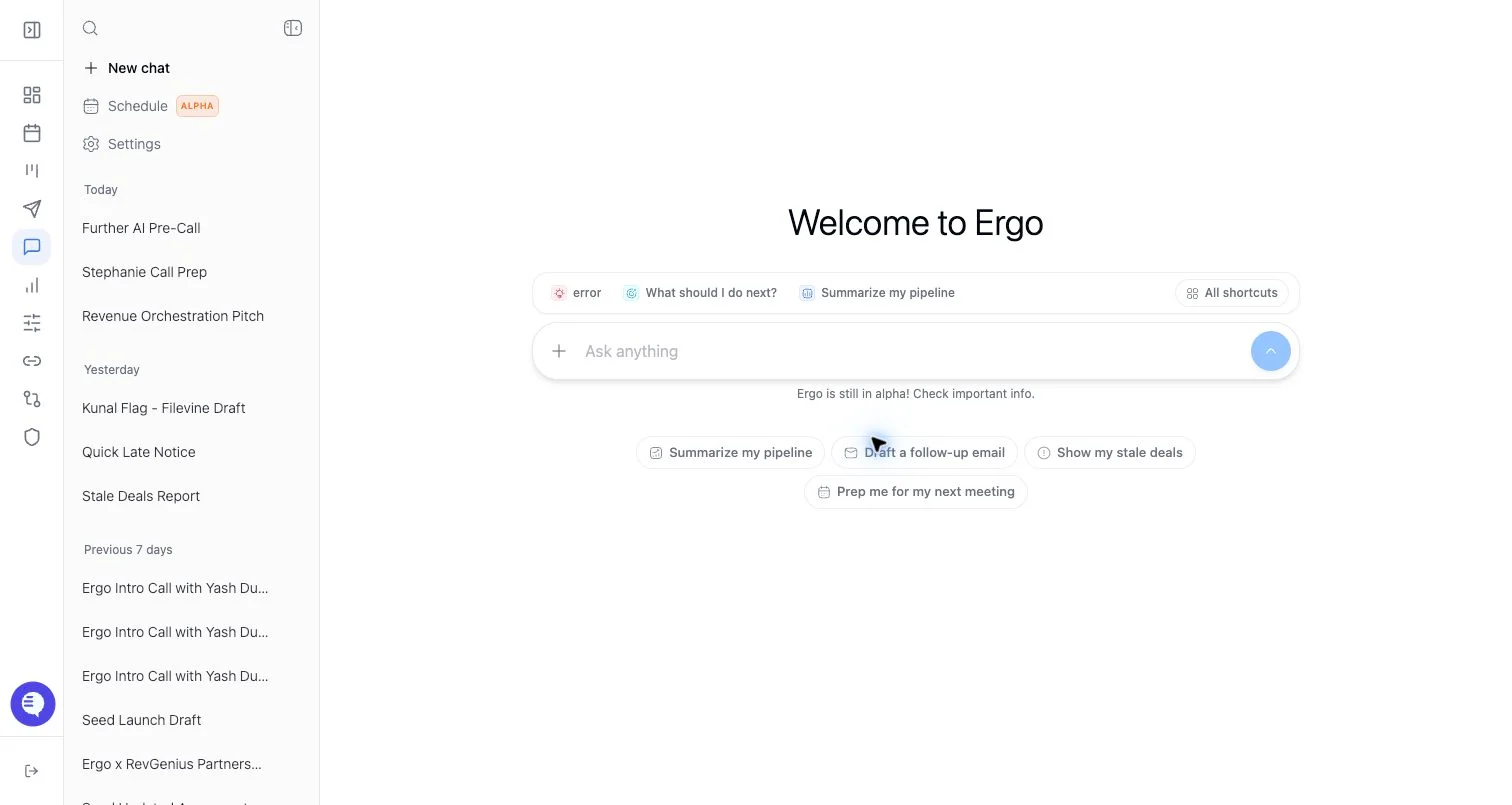
- Open Scheduled Agent Runs from Chat settings or the scheduled runs page.
- Select New Run.
- Enter a name and prompt.
- Choose a weekly schedule and timezone.
- Add email and/or Slack delivery destinations.
- Save the run.
- Use enable/disable to pause or resume it.
- Use Run to queue a manual execution when needed.
What to expect
- The page marks the feature as alpha.
- The current UI enforces a limit of 3 active scheduled runs.
- Runs can be created, edited, deleted, enabled, disabled, and manually queued.
- A disabled run will not run on schedule and cannot be manually run until enabled.
- Scheduled runs should be checked in history for their final delivery status.
Common issues
- The active run limit is reached.
- The prompt needs context that is not available at run time.
- Delivery destinations are missing or disconnected.
- The run is disabled or has no next run scheduled.