Who can use this
- Reps working from deal or meeting pages.
- Managers reviewing context without leaving the current page.
Before you start
- Open the record you want to ask about.
- Confirm the panel context matches the visible record.
- Start a new chat if you are switching to unrelated work.
Steps
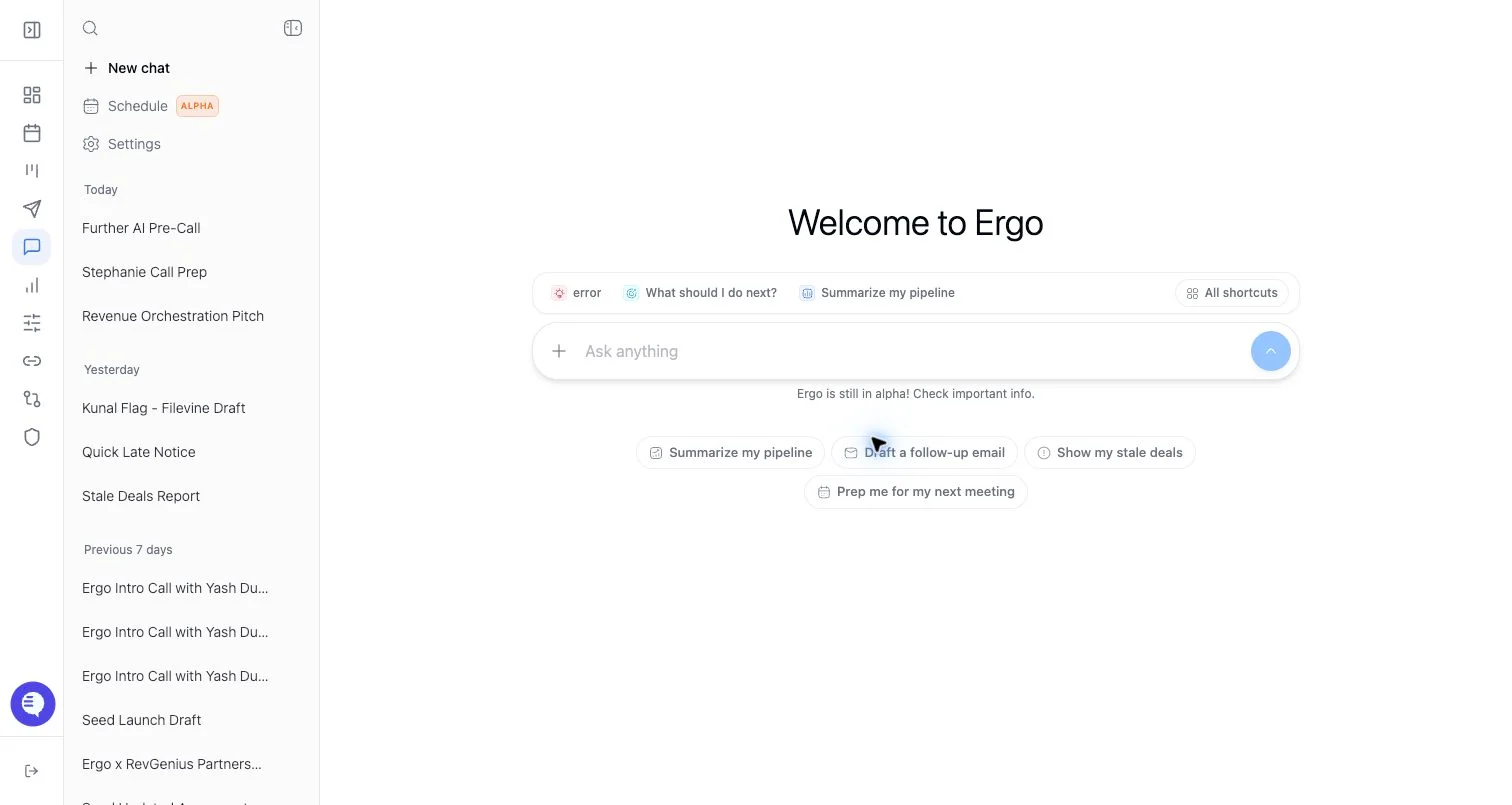
- Open the agent panel from the current page.
- Ask a question or use the visible action prompt.
- Review context pills, sources, and action cards.
- Keep the panel open while you inspect the underlying page.
- Close or collapse the panel when it gets in the way.
What to expect
- The panel can carry context from the page that opened it.
- Some blocks, such as draft cards or CRM action cards, can be edited or dismissed inside the panel.
- Panel state and full chat state may hand off differently depending on the route.
- The panel should not be treated as including every visible page field in the AI context.
Common issues
- The panel is still using context from a previous record.
- A proposed action can only be approved in the original chat or source context.
- The user expects the panel to replace direct record review.
- The panel hides page content on smaller screens.