Who can use this
- Admins can push their settings to users in the same organization.
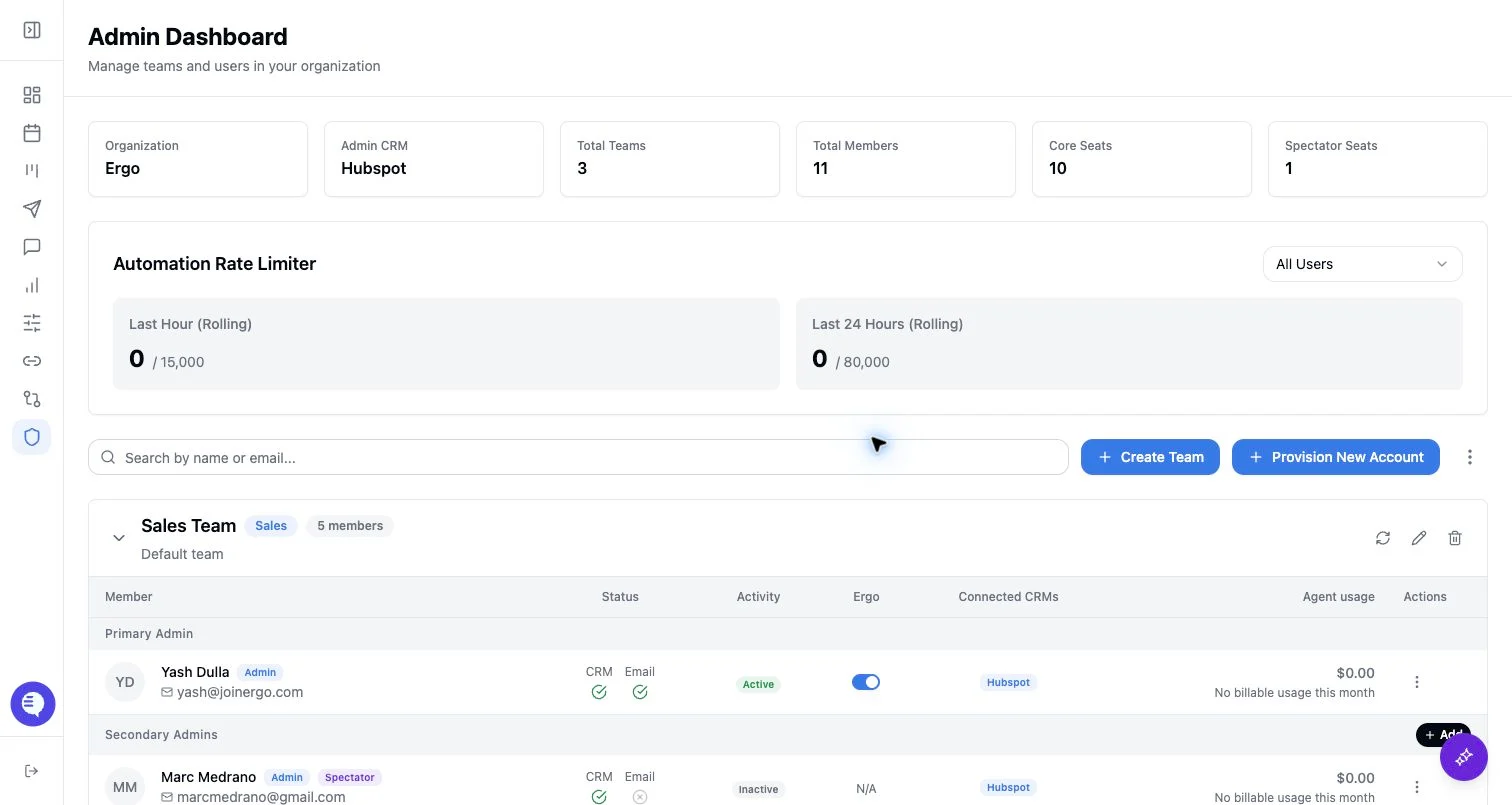
- The Admin member table exposes sync actions for secondary admins and members, not the primary-admin row.
- Use these actions only when the target user should inherit the admin configuration.
Before you start
- Confirm the target user is in the same organization.
- Confirm the admin account has the CRM keys or settings you intend to copy.
- Decide whether you only need CRM credentials or a broader settings push.
- Remember that selected settings can overwrite the target user’s existing configuration.
Sync CRM
Use Sync CRM when the user should receive the organization admin’s CRM keys.- Open Admin and choose the team.
- Open the member’s action menu.
- Select Sync CRM.
- Wait for the sync to finish.
Sync settings to one user
Use Sync Settings to User when a user should receive selected settings from the acting admin’s dashboard.- Open the member’s action menu.
- Select Sync Settings to User.
- Choose the settings categories to copy.
- Select Sync Settings.
- Custom properties
- Pipeline stages
- Company details
- Meeting titles
- Alternate domains
- Partnership domains
- Task settings
- CRM keys
- Email templates
- Advanced settings, including context notifications and related toggles
What to expect
- Settings sync is targeted to one user at a time from the member action menu.
- Selected categories overwrite or replace the target user’s existing values where the sync category applies.
- Owner properties are preserved when custom properties are pushed.
- Pipeline stage sync merges synced stages by internal ID and can add or update the target user’s synced stage records.
- Salesforce record types are synced only when the target user has Salesforce integration.
Common issues
- The target user is missing. Confirm the user is provisioned in the same organization.
- The user dashboard is missing. The account may need provisioning or setup completion before settings can be pushed.
- No CRM keys were copied. Confirm the organization admin has the CRM connection you expected.
- The user lost a local setting. Reopen the relevant settings page and adjust it manually, or repeat the sync with narrower categories.
- Templates were not copied. Email templates are off by default in the sync modal.