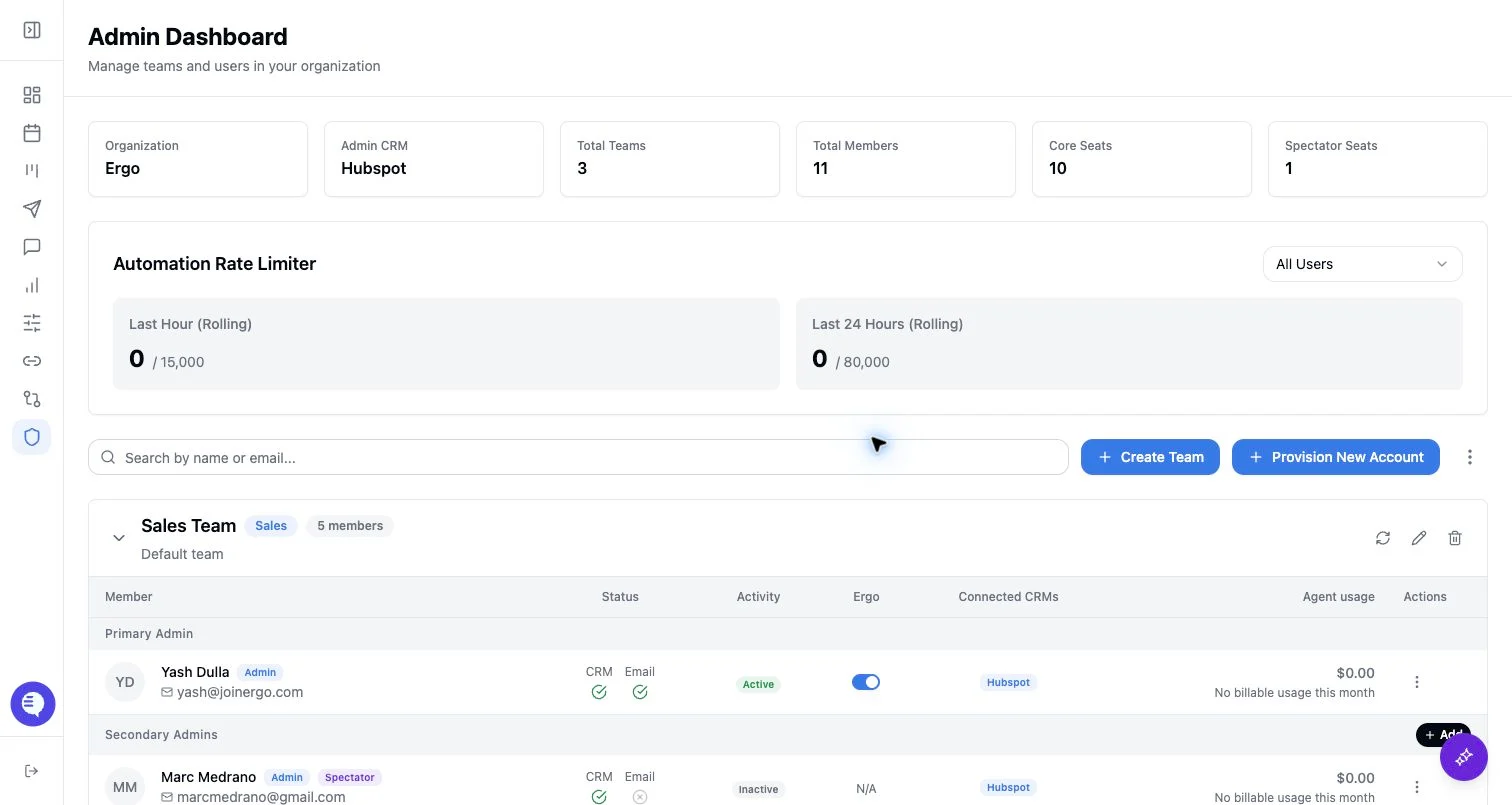
Who can use this
- Super admins can provision spectator seats and convert users between standard and spectator.
- Admins can review spectator status in the Admin member table and coordinate access checks.
Before you start
- Decide whether you are creating a new spectator or converting an existing standard user.
- Confirm whether the spectator should be a user spectator or admin spectator.
- Check whether they need meeting access, reporting access, or only team visibility.
- Tell converted users that integrations and automation settings may need to be reconnected if they later become standard users again.
Create a spectator
- Open Admin.
- Select Provision New Account.
- Enter the required user and team details.
- Choose Spectator as the seat type.
- Choose User or Admin for the role.
- Provision the account and have the user complete the limited setup they need.
Convert an existing user to spectator
- Open the user’s action menu in the Admin member table.
- Select Convert to Spectator.
- Review the confirmation details.
- Confirm the conversion.
Convert a spectator back to standard user
- Open the spectator’s action menu.
- Select Convert to User.
- Confirm the conversion.
- Ask the user to reconnect integrations and re-enable any needed settings.
Access checks
- Use Grant meeting/reporting access when a spectator needs specific meeting or reporting visibility.
- Use an admin spectator role when the person needs admin-level visibility or controls.
- Do not assume spectator conversion changes historical access for every meeting or report; verify the relevant access grant.
What to expect
- Spectators are view-oriented seats. They should not be used for users who need Ergo to draft emails, write CRM updates, or run user-level automation.
- Spectator users appear inactive because active status requires CRM connection, Ergo enabled, and a standard seat.
- A spectator can still be part of a team and can be managed from the Admin member table.
Common issues
- The user expected full automation. Convert them to a standard user and have them reconnect integrations.
- The Ergo toggle is unavailable. Ergo cannot be enabled for view-only accounts.
- The spectator cannot see the right report or meeting. Review meeting and reporting access grants separately.
- The person needs a different team. Move the member between teams instead of changing the seat type.