Who can use this
- Admins and Super Admins who can manage organization users.
Before you start
- Create or identify the team the user should belong to.
- Confirm the user’s first name, last name, and email address.
- Choose the role: User or Admin.
- Choose the seat type: Standard or Spectator.
- Confirm whether the person should contribute data through CRM/email/drafts or mainly view meetings, notes, folders, and reporting.
Steps
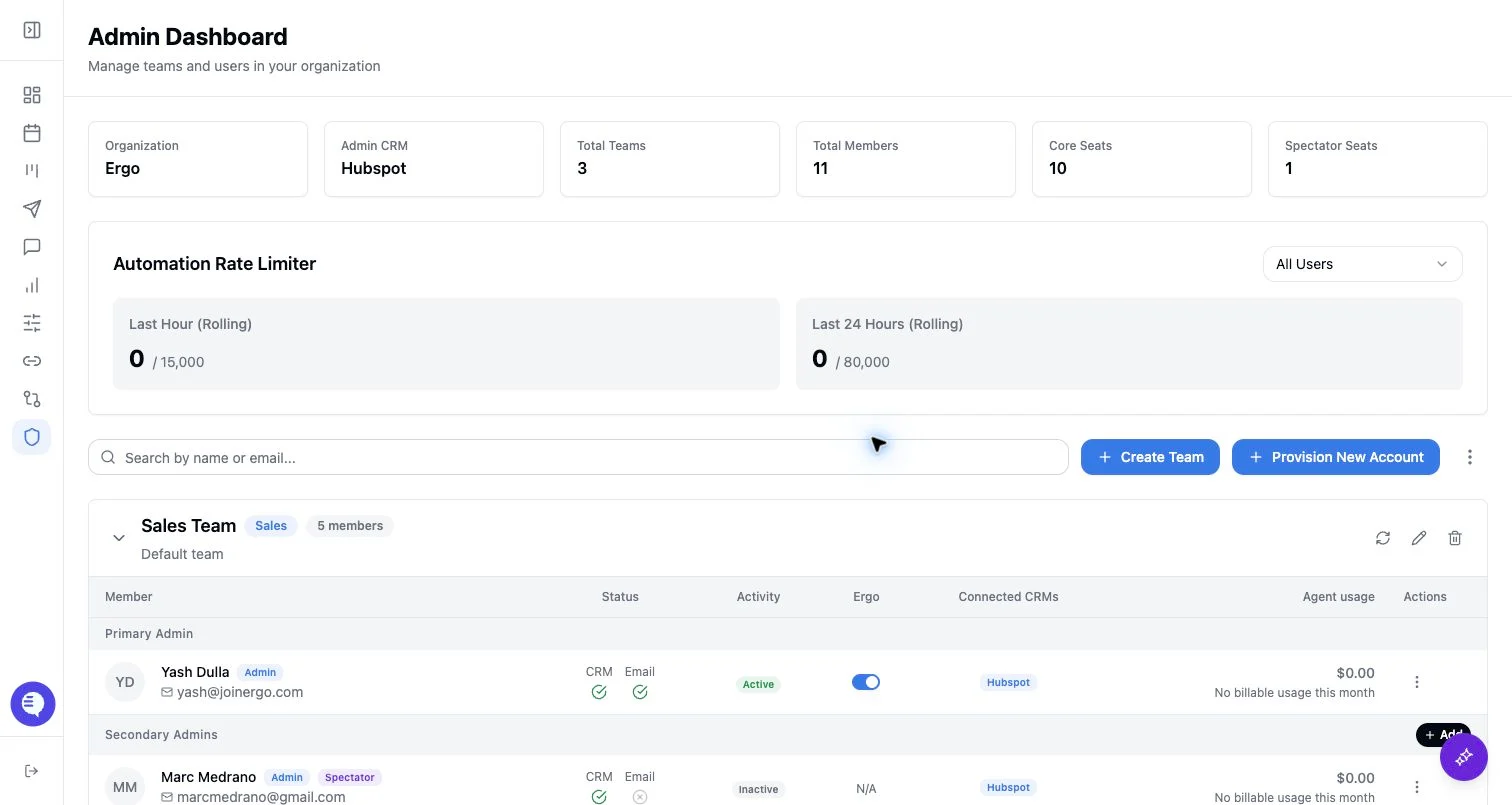
- Open Admin.
- Select Provision New Account.
- Choose the team.
- Choose the role and seat type.
- Enter first name, last name, and email address.
- Submit the form and wait for the success confirmation.
- Ask the user to sign in and complete personal setup for the sources they need, such as CRM, email/calendar, Slack, and notetaker.
What to expect
- Provisioning creates the user and organization membership, then creates the user’s Ergo dashboard.
- Provisioned accounts have tasks disabled by default in the current backend flow.
- Standard users have full platform access for the role they receive.
- Spectator seats are designed for limited participation; spectator users should not be treated as normal CRM writeback or draft-email contributors.
- A welcome email is attempted, but email delivery failure does not necessarily mean account creation failed.
- Seat checks or billing review can happen separately from provisioning. Do not treat the provisioning page as the source of contract terms.
Common issues
- The selected team list fails to load.
- The email address is invalid or already belongs to an existing user.
- The user is provisioned into the wrong team or with the wrong seat type.
- The user can sign in but still has not connected required personal sources.
- The welcome email was not delivered even though the account exists.