Who can use this
- Super Admins who manage the full organization structure.
- Team admins who manage or review the teams they own.
Before you start
- Confirm whether the person is an organization member, a member of one team, or a member of multiple teams.
- Check whether the person is a primary admin, secondary admin, standard user, or spectator.
- Confirm any separate access grants, such as reporting access, global meeting access, and CRM settings.
Steps
- Open Admin.
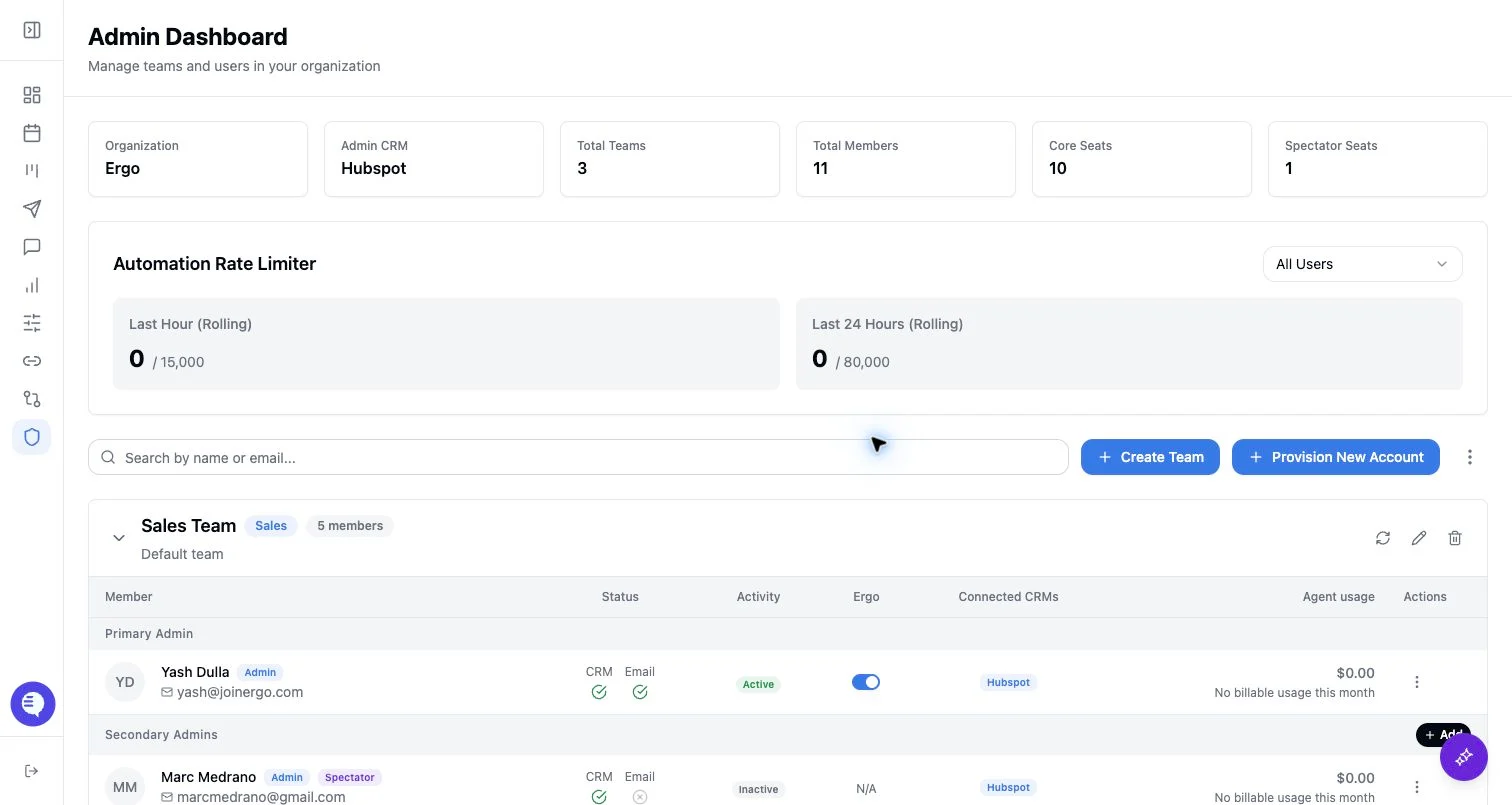
- Review the organization overview and team list.
- Expand a team to see its primary admin, secondary admins, users, and spectators.
- Check the team type when it matters for reporting or operating ownership. Supported team types include sales, implementation, success, partnerships, growth/marketing, and product.
- Use team membership to decide who owns setup and support for each member.
- Review separate access controls before assuming a team change grants or removes access everywhere.
What to expect
- A team has one primary admin and can have multiple secondary admins.
- Standard users and spectators can appear within teams, but spectator status is not the same thing as a team-admin role.
- Reporting access grants, global meeting access, and CRM sync settings are separate from team membership.
- Team structure can influence ownership and visibility, but it should not be treated as the only permission system.
Common issues
- A user is added to the organization but not placed in the expected team.
- A team admin expects to manage a team they do not own.
- A spectator is treated like a standard user during setup.
- A reporting or meeting visibility issue is blamed on team membership when a separate access grant is missing.