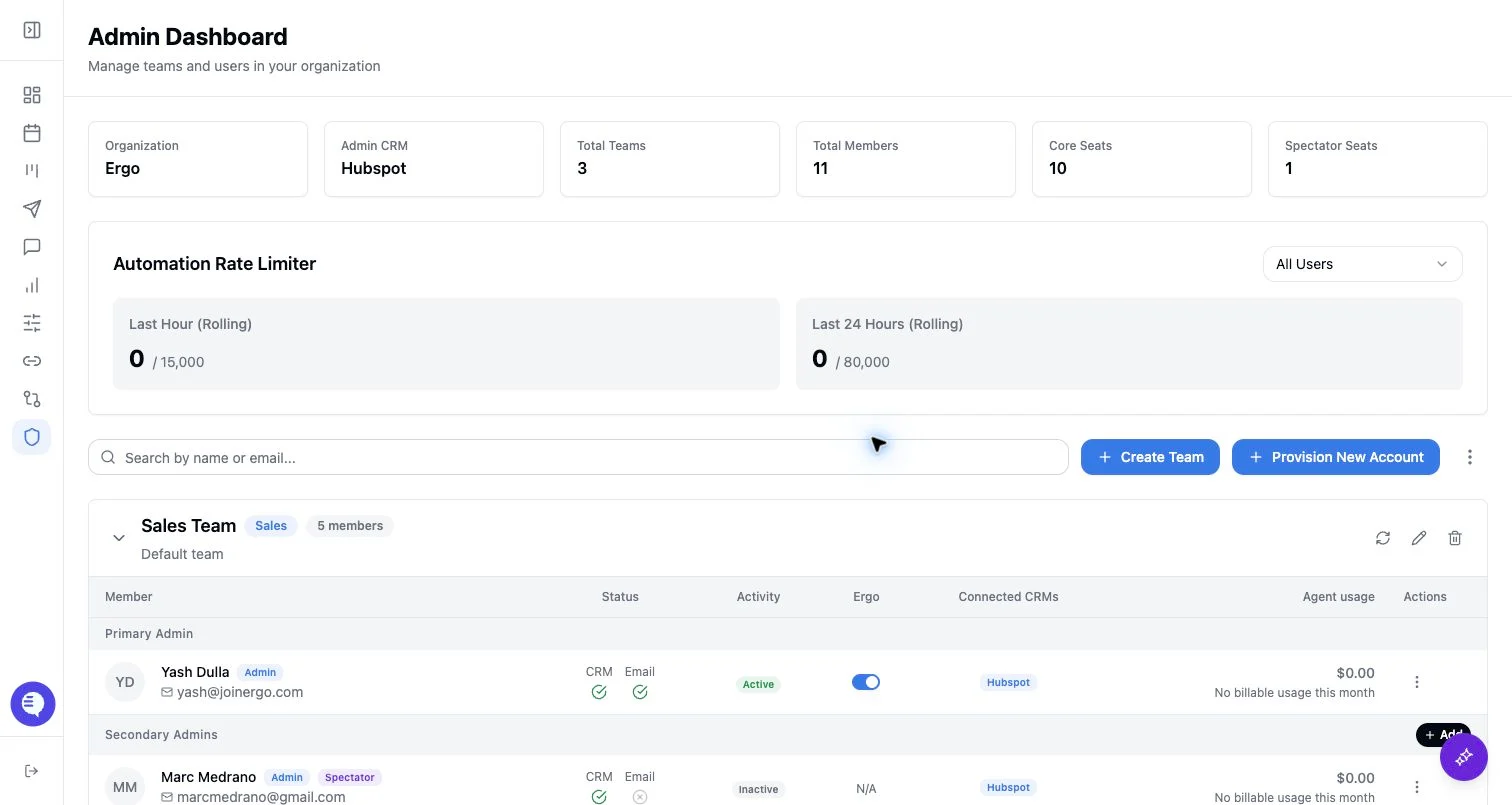
Who can use this
- Admins can fetch member Ergo status for users in their organization.
- Admins can toggle Ergo for users in the same organization when the target account supports it.
- Users can also manage their own Ergo enabled status outside Admin.
Before you start
- Confirm the user belongs to your organization.
- Check whether the user is a spectator. Spectators are view-only accounts and cannot have Ergo enabled.
- Confirm the user’s CRM connection if you are troubleshooting Inactive status.
Steps
- Open Admin and choose the team.
- Find the user in the member table.
- Review the Status badge and the Ergo column.
- If the toggle is available, turn Ergo on or off for that user.
- Ask the user to refresh and verify their own status.
What to expect
- Enabled means the user’s dashboard has
ergoEnabledset to on. - Active in the Admin table requires three things: CRM connected, Ergo enabled, and a standard seat.
- Inactive can mean the user is missing CRM connection, has Ergo disabled, or is a spectator.
- Spectators show N/A in the Ergo column and cannot be enabled while they remain spectators.
- If a dashboard record is missing, the Admin action returns an error instead of changing status.
Common issues
- The user is still inactive after enabling Ergo. Confirm their CRM is connected and that they are not a spectator.
- The toggle is unavailable. The user may be a spectator or the acting user may not have the right admin access.
- The toggle fails. Confirm the user is in the same organization and has a dashboard record.
- A spectator needs automation. Convert the user to a standard seat first, then reconnect integrations and enable Ergo as needed.