Who can use this
- Super Admins can create and delete teams.
- Super Admins can edit any team.
- A team’s primary admin can edit that team’s name, description, or type.
Before you start
- Decide the team name, optional description, team type, and primary admin.
- Make sure the primary admin is already an organization member with the admin role.
- Check whether any members would be left without a team before deleting.
- Review reporting access, CRM settings, and meeting visibility before changing team structure.
Steps
- Open Admin.
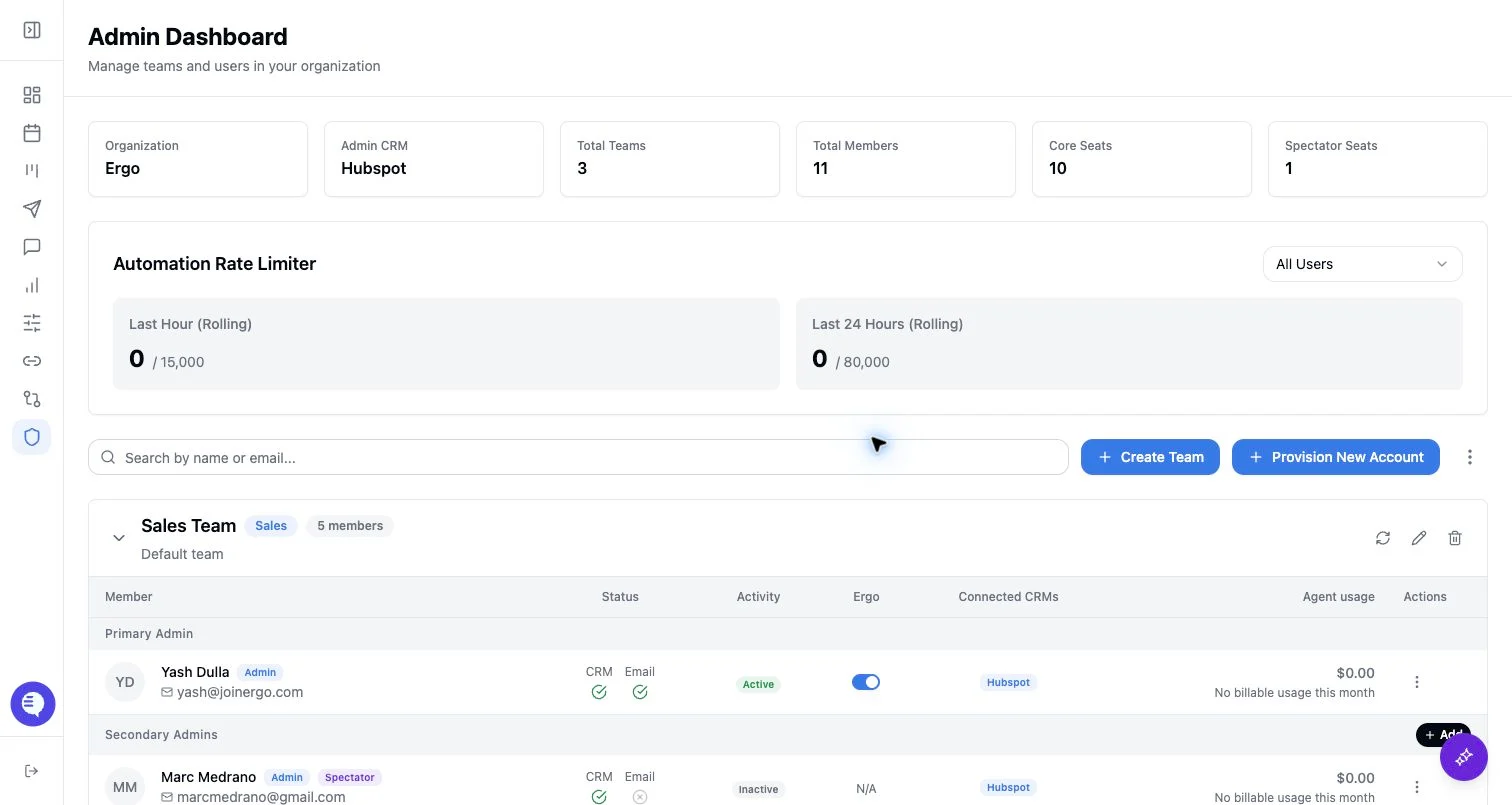
- To create a team, choose Create Team, enter a team name, choose a team type, and select a primary admin.
- Use the team description to explain the team’s function. Ergo can prefill descriptions based on team type, but you can edit them.
- To edit a team, open the team actions and update its name, description, or type.
- To delete a team, confirm the deletion dialog only after every member has another team assignment.
- After creating or editing a team, review the team membership and add the right secondary admins, users, or spectators.
What to expect
- Creating a team adds it to the organization’s team structure and assigns a primary admin.
- Team types are limited to the supported values in the Admin UI, such as sales, implementation, success, partnerships, growth/marketing, and product.
- Deleting a team is blocked when any member would be left with no team.
- Editing a team does not automatically move members or grant reporting access.
Common issues
- There are no eligible admin users to select as primary admin.
- The team name is blank or the team type is invalid.
- The acting user can view the team but does not have permission to edit or delete it.
- Deletion fails because one or more members do not belong to another team.
- A new team exists, but members, reporting access, and CRM settings still need follow-up.