Who can use this
- Admins who manage their team and team members.
- Super Admins who manage organization-wide teams, global controls, persona, pipeline access, provisioning, and other broad settings.
Before you start
- Sign in with admin access or delegated permission for the area you are changing.
- Confirm whether the change is team-level or organization-wide.
- Check the member’s role, seat type, CRM connection, email connection, reporting access, and meeting visibility before changing access.
- Use super-admin-only controls only when the change should affect the broader organization, not just one team.
Steps
- Open Admin from the left navigation.
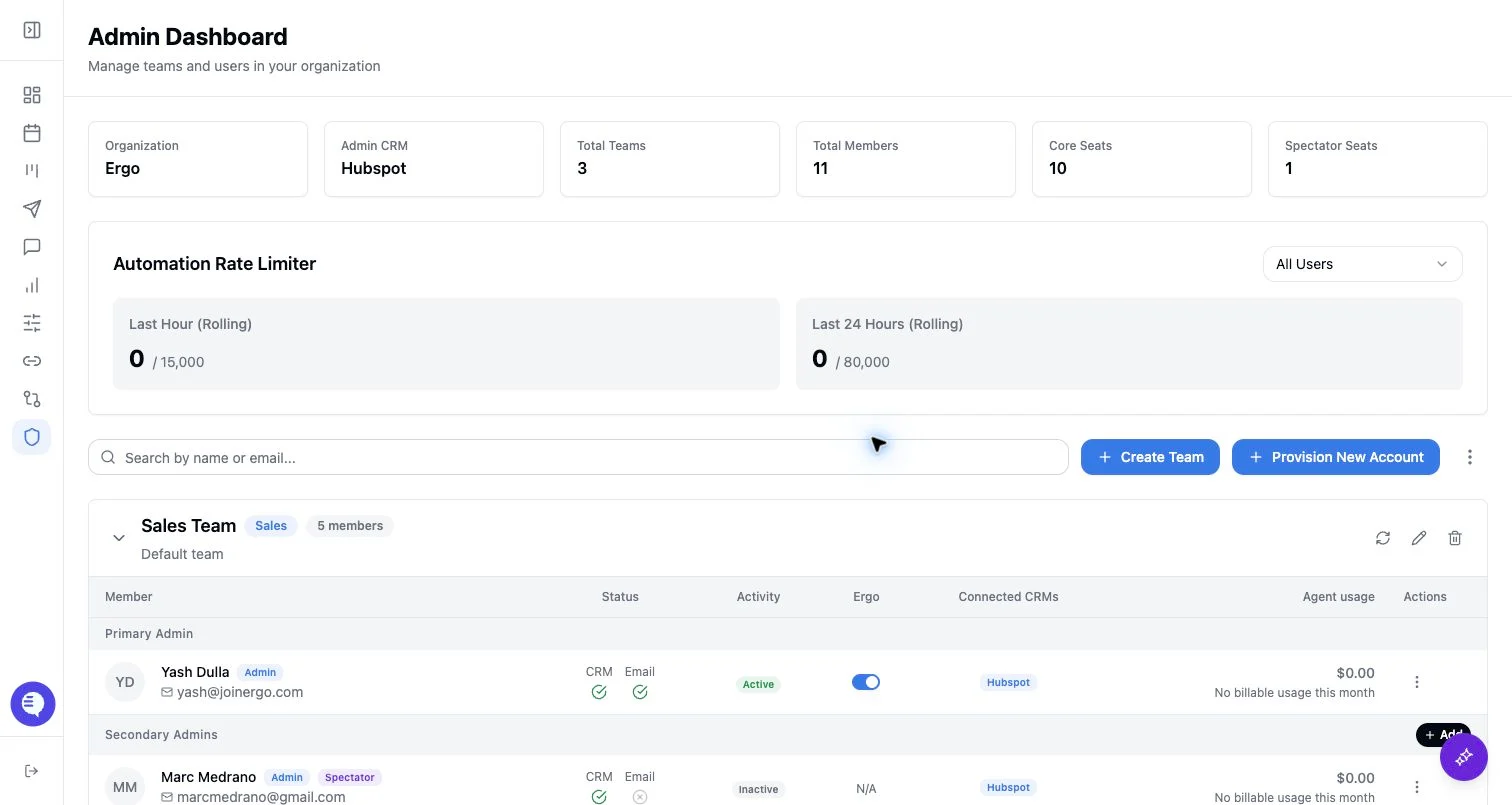
- Review the organization overview for team count, member count, active members, admins, and spectator seats.
- Search for a team or member when you are troubleshooting a specific person.
- Expand a team to review its primary admin, secondary admins, standard users, spectators, CRM/email connection state, and active state.
- Use the action available for your role: provision an account, create or edit a team, add or remove members, sync CRM settings, grant reporting access, or adjust global controls.
- After a change, ask affected users to refresh and complete any required personal setup, such as connecting CRM, email, or calendar.
What to expect
- Admin visibility and actions depend on the acting user’s role and team relationship.
- Super Admins can see additional controls such as global meeting access, persona, pipeline access, and some usage views.
- Team membership and role changes can affect meeting access, reporting access, CRM settings, and whether a user is treated as a standard user or spectator.
- Reporting access, global meeting access, and CRM sync settings are separate controls. Changing one does not automatically configure the others.
Common issues
- The acting user is not an admin or super admin.
- A team-level admin expects to see super-admin-only controls.
- A user was provisioned but has not finished personal setup.
- A member is in the wrong team, so the wrong admin owns their setup.
- A user has Admin access but still needs separate reporting or meeting access.