Who can use this
- Super admins can add members to teams, move members between teams, remove members from a team, and remove a user from the organization.
- Primary and secondary admins can review their team membership, but member add, move, and removal actions are guarded by super-admin permissions.
Before you start
- Confirm whether you are changing a team assignment or removing the person from the organization entirely.
- Make sure the person already appears in the organization member list before adding them to another team.
- Reassign a team primary admin before trying to move or remove that person.
- Check whether the member also needs meeting access, reporting access, or CRM settings sync after the team change.
Add an existing organization user to a team
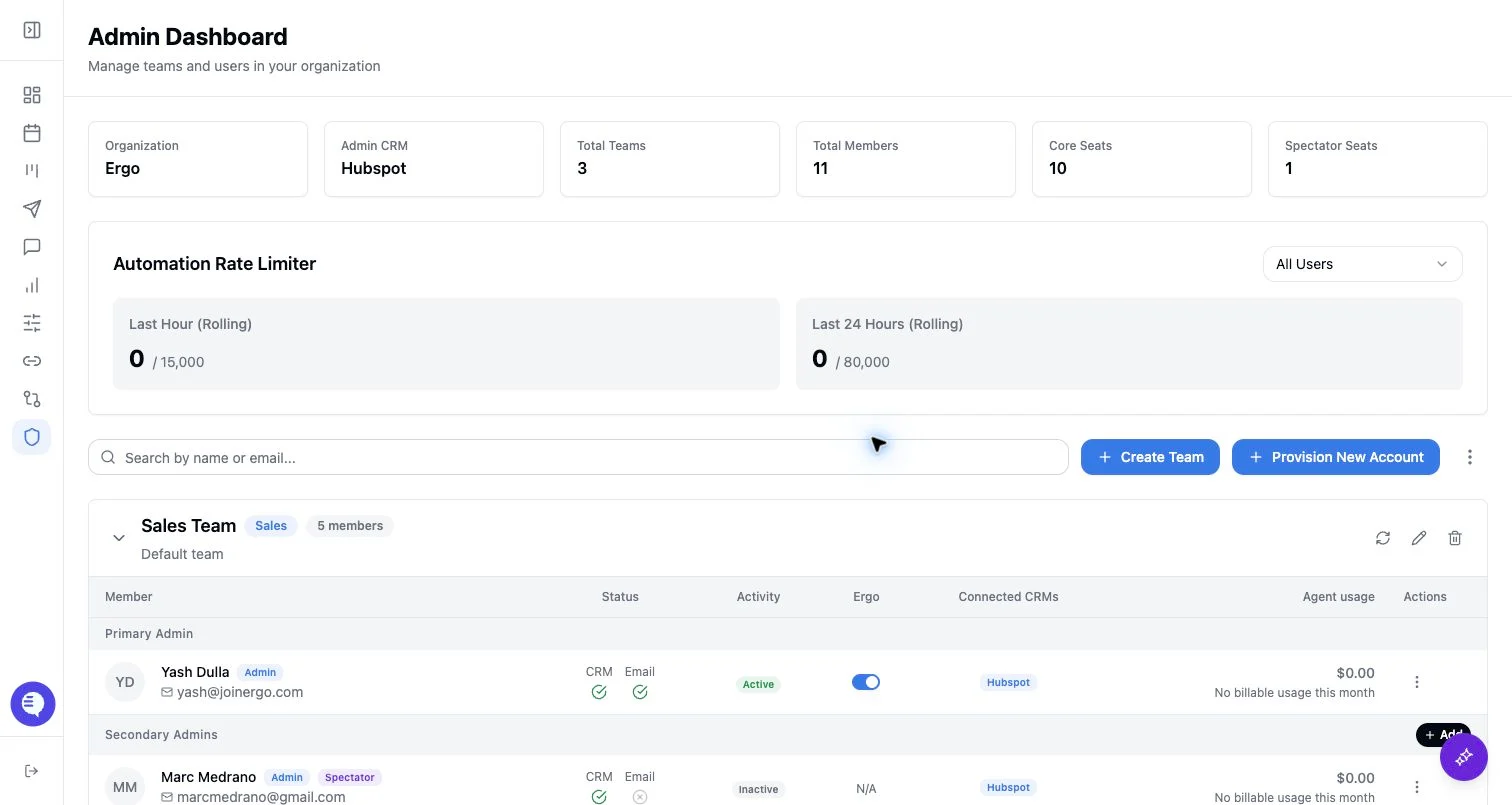
- Open Admin and choose the team.
- In the member table, use the add button in Secondary Admins or Members.
- Search by name or email.
- Select the person to add.
Move a member to a different team
- Open the member’s action menu.
- Select Move to Team.
- Choose a destination team.
- Confirm the move.
Remove a member
Open the member’s action menu and choose Remove. The confirmation dialog has two different actions:- Remove from team removes the person from this team but keeps them in the organization.
- Remove entirely removes the person from all teams and removes their dashboard access for the organization.
What to expect
- Team membership changes update the member table after the Admin data refreshes.
- Removing a member from one team does not provision, deactivate, or delete a separate user account by itself.
- Removing a user entirely removes them from all teams and dashboards in the organization. Treat this as a destructive access change.
- Role changes are handled separately. Use Promote/demote/convert roles when the person should stay on the team but needs a different role.
Common issues
- The person does not appear in Add member. They may already be on the team, may not be provisioned in the organization, or may not have the admin role required for the secondary-admin section.
- Move to Team has no destination. The member may already belong to every available team, or there may be no other team to move them to.
- Removal is blocked. Primary admins must be reassigned first, and a member cannot be removed from their only team with the team-removal action.
- Access still looks wrong after a move. Review meeting access, reporting access, CRM settings sync, and role settings separately.